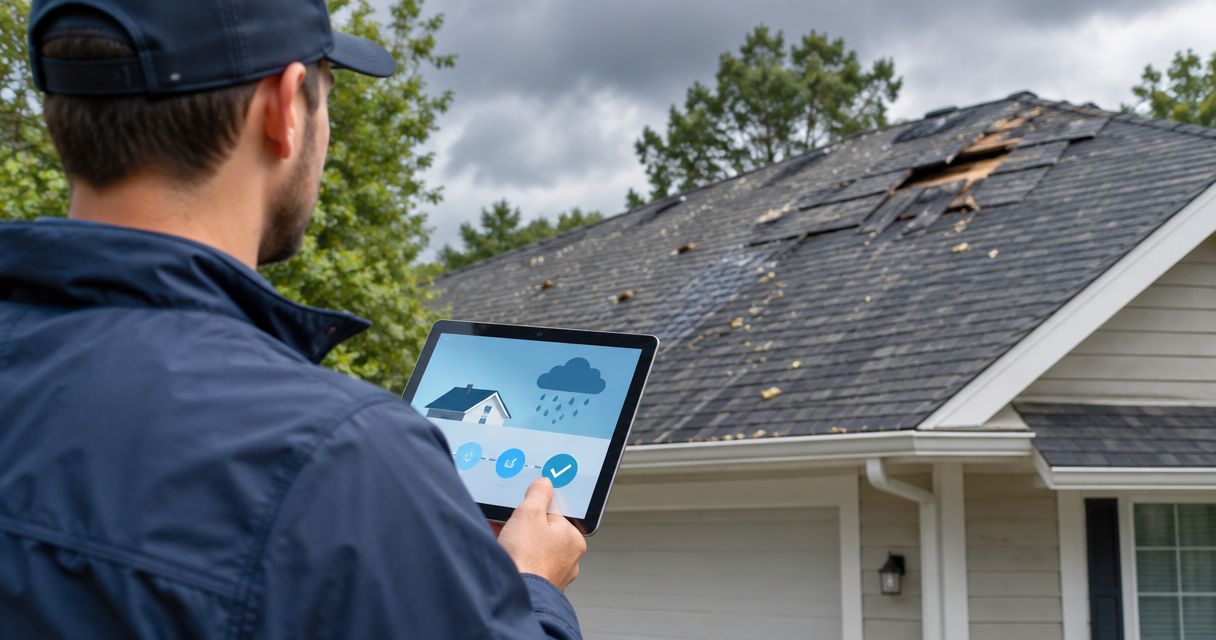
Instead of manually checking storm alerts and chasing a roof-cleaning appointment, automatically route relevant alerts into a review queue, then schedule roof washing after storm damage has been assessed and any necessary repairs are complete. This 2026 workflow uses Gmail to organize incoming messages and Google Calendar to record an appointment only after you and the cleaning provider confirm it.
- To schedule roof washing after storm damage, automate alert sorting—not permission to wash a potentially damaged roof.
- Socalemm offers roof soft washing for homeowners in Newport Beach and Orange County.
- Use Gmail filters for storm alerts and Google Calendar for confirmed roof-cleaning appointments.
- Keep roof damage assessment, repair decisions, and cleaning approval separate.
Why this matters
A storm warning describes weather risk, not the condition of your roof. Automatically converting that warning into a cleaning appointment skips the decision that matters: whether the roof needs assessment or repair before anyone cleans it.
Socalemm roof soft washing is best for Newport Beach and Orange County homeowners seeking roof cleaning, not storm-damage repair. Once damage concerns are resolved, you can request a quote and describe the roof condition, access constraints, and cleaning needs.
The useful automation is administrative. It sorts alerts, keeps records together, and makes the next action visible without treating a forecast as permission to work.
Before you start
- Accounts and access: Use a Gmail account receiving your chosen weather alerts and a Google Calendar you control. Keep the property's identifying details in private records rather than public calendar entries.
- Materials and responsibility: Have ground-level photographs, any existing roof documentation, and the name of the person authorized to approve cleaning. Do not climb onto a roof to collect information for this workflow.
- The important catch: An alert does not establish damage, and a quote request does not establish an appointment. Keep scheduling blocked while leaks, displaced materials, or other damage concerns remain unresolved.
This guide uses desktop Gmail and Google Calendar. Bold button names refer to interface controls; suggested labels and event titles are text you create yourself, not built-in service integrations.
Choose the right workflow
For a homeowner managing one property, a labeled email queue is easier to maintain than an elaborate connection between multiple applications. The trade-off is deliberate: you still approve the appointment yourself.
| Workflow | Best for | Benefit | Limitation |
|---|---|---|---|
| Gmail alert queue | Homeowners organizing incoming weather messages | Automatically separates relevant messages from ordinary email | Does not assess roof condition or reserve a visit |
| Google Calendar appointment | Homeowners with a provider-confirmed cleaning date | Keeps timing and preparation notes together | An event you create does not notify or book a provider by itself |
| Shared maintenance record | Property managers coordinating approval | Separates assessment, repair, and cleaning responsibilities | Requires someone to keep the record current |
Use automatic sorting and human approval together. Do not add a rule that sends a cleaning authorization whenever an alert contains a storm-related word.
Alert inbox configuration
Establish the source and property record
- Choose the weather-alert source you intend to monitor and have its messages delivered to Gmail. Check the geographic coverage before using those messages to trigger your review process.
- Open a genuine message from that source. Record its sender address and inspect the subject and body for consistent wording.
- Create a private property note headed Roof follow-up 2026. Include the property reference, approval contact, roof material if known, and where you store photographs.
- Define the next action as Review roof condition. Do not define it as Book roof washing.
Keep 1 property per record. This is an organizational rule for the workflow, not a requirement imposed by Gmail. Separate records prevent photographs or approval notes from one home being attached to another home's request.
Expected result: You have a real incoming alert to build around and a property record that identifies who decides what happens next.
Keep weather and damage records distinct
Save the alert's issue time alongside your observation time. Those are different facts: the first describes the message, while the second describes when someone noticed a condition at the property.
An email saying severe weather is possible belongs in the alert record. A photograph showing displaced roofing belongs in the condition record. Neither should silently overwrite the other.
Gmail filter configuration
Create a narrow filter
- In Gmail, select Show search options beside the search box.
- Enter the verified sender address in From. Add a phrase actually present in relevant messages to Has the words if the sender also distributes unrelated notices.
- Select Search first and review the results. Adjust the criteria if ordinary updates or messages for unrelated areas appear.
- Reopen Show search options and select Create filter.
- Select Apply the label, then Choose label and New label. Enter Roof review 2026 and select Create.
- Leave Delete it and Skip the Inbox (Archive it) unselected during setup. Select Create filter to save the rule.
A narrow filter reduces unrelated messages, but it also misses alerts whose wording changes. Start with the verified sender and add wording restrictions only when the search results justify them.
Expected result: Matching incoming messages receive your roof-review label while remaining visible in the inbox. The filter does not contact a contractor or create an appointment.
Check the routing before relying on it
Review 3 test messages: a relevant alert, an unrelated message, and an update to an earlier alert. Use genuine examples where possible; do not fabricate an official-looking weather notice.
Check which messages match using Gmail search. If you test with messages sent from your own account, remember that a filter restricted to the alert provider's sender address will not match them.
Keep the label descriptive. Roof review is a reminder to make a decision, not evidence that the roof has been inspected.
Approval and calendar configuration
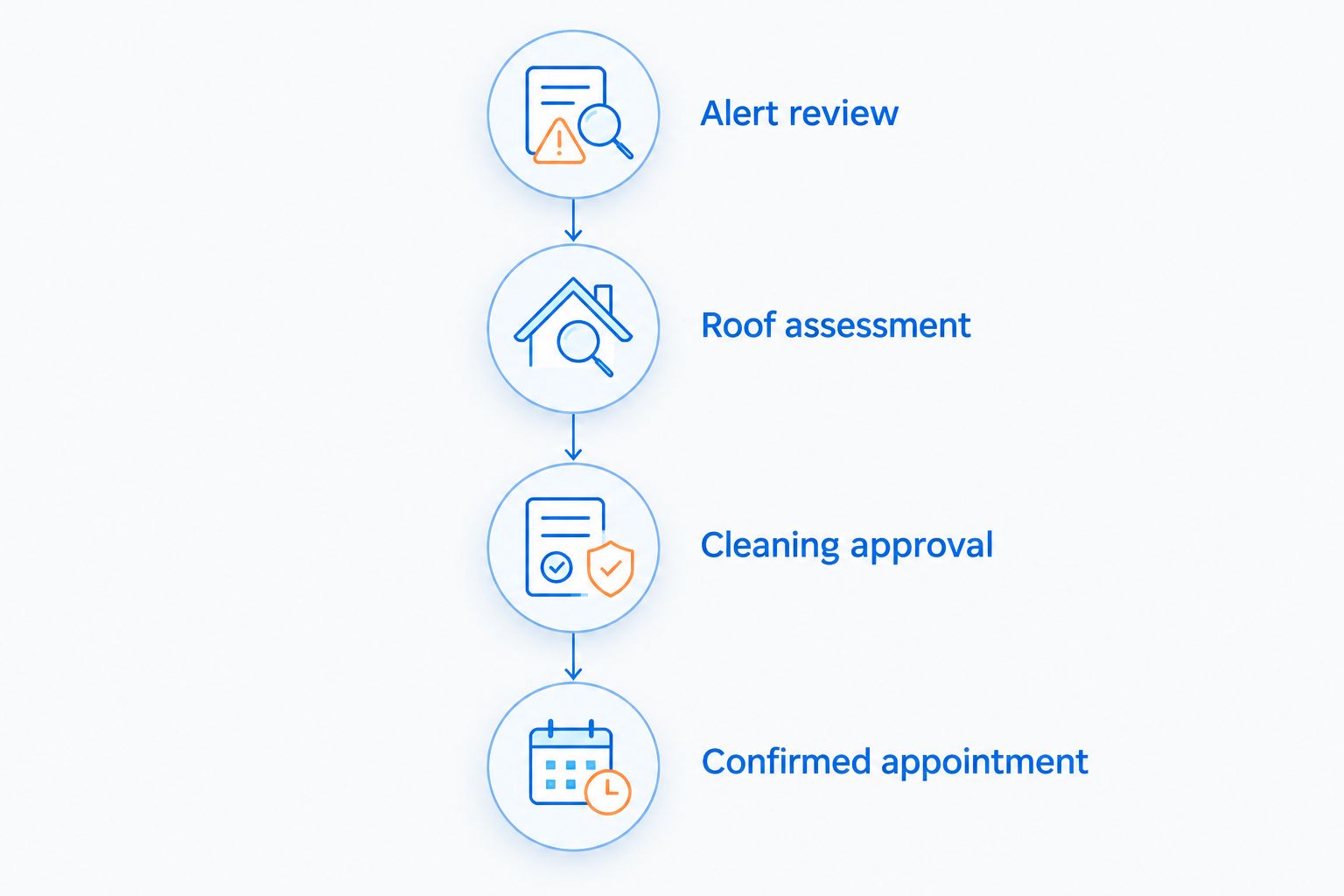
Separate assessment from cleaning
- Review the alert and the property's condition from a safe location. Do not enter an unsafe area or climb onto wet roofing.
- If you see signs of damage or have an active leak, arrange assessment by an appropriate roofing professional. Keep cleaning on hold while those concerns are unresolved.
- Document the outcome in the property record. Use plain language such as Assessment needed, Repairs pending, or Cleaning review ready.
- When appropriate, ask the cleaning provider to review the proposed scope and roof material. Explain recent weather exposure and any completed repairs.
Cleaning is not a substitute for repairing broken roofing or stopping a leak. Likewise, a roof that looks dirty in a photograph is not automatically ready for treatment.
For the cleaning-method decision, read soft washing versus pressure washing for roofs. Confirm the method against the roof manufacturer's guidance and the actual condition of the roof rather than choosing it from an alert alone.
Expected result: Your record identifies whether the next action belongs to a roofing professional, the homeowner, or the cleaning provider. Unresolved damage concerns keep the appointment blocked.
Record only confirmed appointments
- Open Google Calendar and select Create, then Event.
- Give the event a clear title, such as Roof cleaning — confirmed. Enter only the date and time agreed with the provider.
- Add preparation notes to the event description: access arrangements, pets, landscaping concerns, and any roof-condition information the provider needs.
- Add guests only when those people should receive the event invitation. Do not assume an invitation replaces the provider's booking process.
- Select Save. Check that the calendar entry agrees with the provider's confirmation.
Use 2 calendar events only when you genuinely need separate entries: one for an assessment and one for a confirmed cleaning visit. Label them differently so an assessment reminder cannot be mistaken for authorization to wash.
Expected result: Your calendar reflects an agreed appointment. A weather message, personal reminder, or unanswered request cannot masquerade as a confirmed visit.
Second workflow: when an alert is updated
An updated or canceled weather alert should trigger another review, not another cleaning request. Your existing Gmail filter can collect those messages if its criteria match the sender and wording.
Open the property record and compare the new message with the earlier one. Note the change and check whether an assessment or cleaning appointment already exists.
- Before assessment: Keep the next action focused on property condition, not the alert's headline.
- After assessment: Preserve the assessment outcome unless new conditions require another review.
- Before cleaning: Ask the provider about changed conditions affecting the agreed visit. Do not treat the calendar as the final authority on safe working conditions.
- After cleaning: Close the record when the work and any follow-up are complete; a later storm starts a new review.
For a 2026 maintenance record, retain the original alert and its update together. A canceled warning does not establish that a previously observed roof problem has disappeared.
Troubleshooting
Relevant messages never receive the label
Check the sender and search terms against an actual message. A provider can use different addresses for account notices and weather alerts, and a narrow phrase can exclude an otherwise relevant update.
Adjust the filter using observed message content. Do not solve missed alerts by routing every email containing rain into the roof queue.
One storm creates several cleaning requests
The workflow is treating each message as a new job. Keep all updates for the same property and weather event in one record, then check that record before sending another request.
One weather event should not automatically produce multiple appointments. Keep confirmation details in the record so another household member can see what has already been arranged.
The calendar shows a visit nobody confirmed
Rename the entry as a reminder and remove any wording suggesting a confirmed appointment. Contact the provider through the established conversation before entering an agreed visit.
A calendar invitation is a communication tool, not proof that the provider accepted the work.
Roof damage appears after cleaning was requested
Tell the provider about the new information and pause the cleaning decision. Arrange the appropriate assessment rather than editing the calendar and assuming the problem is handled.
Update the property record as well. Otherwise, an old approval note can remain visible after the reason for that approval has changed.
Customize your workflow
For a homeowner, keep the system small: alert email, property note, assessment outcome, confirmed appointment. Add complexity only when a repeated problem justifies it.
For commercial properties or HOA-managed buildings, use a separate maintenance record with the responsible manager and approval process. Do not use a resident's personal calendar entry as authorization for work on shared roofing.
Socalemm provides residential and commercial exterior cleaning, including roof soft washing. That service scope does not establish an automatic-booking connection with your email, calendar, or property-management system.
Review your filter and contact details when setting up your 2026 maintenance calendar. Check the rule again if the alert source changes its sender address or message format.
Request a roof-cleaning quote
Describe your roof, recent storm concerns, and any completed assessment or repairs.
FAQ
Can I automatically schedule roof washing after storm damage alerts?
Automatically sort the alerts, but require approval before scheduling roof washing after storm damage. A weather message does not establish roof condition or confirm a provider's appointment.
Should I wash my roof immediately after a storm?
Do not wash a roof while damage concerns remain unresolved. Arrange assessment when needed, then discuss cleaning after the roof's condition and any necessary repairs are addressed.
Does Socalemm repair storm-damaged roofs?
Socalemm's stated services include roof soft washing and exterior cleaning, not storm-damage roof repair. Use an appropriate roofing professional for damage assessment and repair decisions.
Does creating a Google Calendar event book roof cleaning?
No, creating a Google Calendar event does not book roof cleaning with a provider. Record the appointment only after the provider confirms the date, time, and scope.
What should I include in a post-storm roof-cleaning request?
Include the roof material if known, ground-level photographs, observed concerns, and any assessment or repair information. Keep private property details in your direct conversation with the provider.
What happens if the storm alert is canceled?
A canceled alert changes the weather notice, not the condition of your roof. Keep any observed damage concerns open until they are assessed.
Can a property manager use the same workflow?
Yes, a property manager can use the same alert-review sequence with a separate maintenance record and an authorized approver. Keep commercial or shared-property approvals separate from homeowner reminders.
One last thing
A closed weather alert and a closed maintenance issue are different things. Before closing your 2026 roof record, check that the property concern—not merely the email notification—has been resolved.
Socalemm roof soft washing belongs at the cleaning stage of that record. Keeping that boundary clear makes the workflow useful without letting automation make a roof-safety decision.