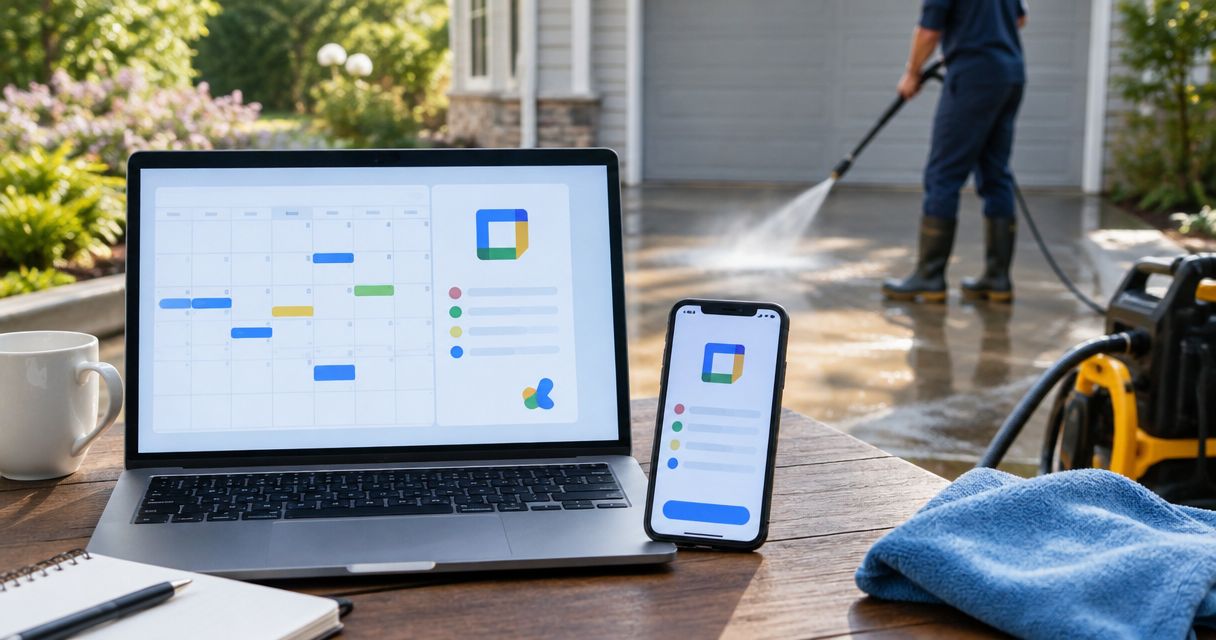
Instead of manually remembering when your driveway needs attention, set up a pressure washing schedule Google Calendar reminder that prompts you to inspect it, arrange cleaning, and prepare for a confirmed appointment. This guide shows Orange County homeowners how to manage those reminders alongside service requests to Socalemm—without treating a calendar entry as a booking.
- Use a pressure washing schedule Google Calendar reminder for inspections; create a separate event for a confirmed cleaning appointment.
- Socalemm provides exterior cleaning in Newport Beach and Orange County; Google Calendar organizes reminders, not service bookings.
- Set notifications before saving, then check phone permissions so your appointment reminders can reach you.
- Repeat inspection reminders, not unconfirmed service appointments; update the calendar when the provider confirms a change.
Why this matters
A recurring reminder and a booked cleaning appointment serve different purposes. The reminder asks you to check the property; the appointment records an agreement with your service provider. Mixing them makes a tentative date look confirmed.
Socalemm is best for Newport Beach and Orange County homeowners seeking pressure washing and exterior cleaning services, not calendar software. Google Calendar handles the planning side of this workflow. You still arrange the work directly with the provider.
For your 2026 maintenance calendar, start with the surface and its condition rather than assigning every exterior area the same cleaning interval. A driveway inspection, house-washing inquiry, and roof soft-washing request should have distinct descriptions. This keeps a general maintenance reminder from becoming an instruction to pressure wash every material.
Before you start
- Account and access: Sign in to Google Calendar with the Google account you use on your phone. Use the desktop website for this setup, then check the same account in the mobile app.
- Planning details: Gather the area you want inspected, any existing appointment confirmation, and your own preparation notes. Put only confirmed service dates on the calendar as appointments.
- The setup gotcha: A saved notification does not guarantee a visible phone alert. Calendar notifications, device permissions, and the account selected in the app all need to match; test them before relying on an appointment reminder.
The clickable labels below refer to Google Calendar on desktop in English. Mobile menus differ, so finish the initial setup on desktop instead of switching between interfaces halfway through.
Do not add a provider as a guest merely to store contact details. A guest invitation is not a service request, and it does not establish that the provider accepts calendar invitations as bookings.
Choose the right calendar entry
Use these two event types together. The inspection reminder helps you decide whether cleaning is needed; the confirmed appointment helps you prepare for work already arranged.
| Calendar entry | Best for | Benefit | Limitation |
|---|---|---|---|
| Recurring inspection reminder | Homeowners tracking driveway, patio, or exterior condition | Reappears without rebuilding the event | Does not tell you whether cleaning is necessary or book a service |
| Confirmed cleaning appointment | Homeowners with an agreed service date and time | Keeps preparation and arrival details together | Needs updating whenever the confirmed schedule changes |
Repeat the inspection, not the assumption that cleaning is due. A fixed calendar interval is an organizational choice, not a surface-care recommendation. Choose the inspection cadence around your property and revise it when those reminders stop being useful.
Keep commercial planning separate. A storefront manager can use the same calendar mechanics, but access arrangements, operating hours, and staff responsibilities belong in a business event—not in a homeowner's driveway reminder.
Inspection reminder setup
Create a reminder that asks you to look at the surface before requesting work. For a 2026 household calendar, a title such as Driveway condition check makes the task clearer than Pressure washing booked.
- Open Google Calendar on desktop and select Create, then Event.
- Enter a title describing the task, such as Driveway condition check or Patio cleaning review.
- Choose a date and time when you can actually inspect the area. Use a timed event if you want a notification tied to that specific time.
- Select More options to open the full event editor.
- Open Does not repeat, then choose Custom if you need a repeating inspection schedule. Set the recurrence and its end condition around your planning needs.
- In the description, list what you will check: visible buildup, slippery areas, drainage, and any damaged or loose material. Add a note to request advice before selecting a cleaning method.
- Select Add notification, choose Notification, and set when you want the alert.
- Select Save. Reopen the event and check the date, recurrence, description, and notification.
Expected result: You have a recurring inspection event with an alert. Nothing has been booked, and the event description makes that distinction explicit.
Keep the description short enough to use outdoors. A checklist that requires a long read becomes another task to postpone. Record observations rather than diagnosing stains or choosing chemicals from appearance alone.
Confirmed appointment setup
Create the appointment only after the service provider confirms the schedule. Copy the agreed information instead of filling gaps with assumed arrival times, service scope, or preparation requirements.
- Select Create, then Event. Enter a title such as Confirmed driveway cleaning.
- Set the confirmed date, start time, and end time. If the provider gives an arrival window, describe that window accurately rather than recording an exact arrival you have not been promised.
- Select More options. Leave Does not repeat unchanged unless repeated appointments have actually been agreed.
- Add the agreed work and your own access notes to the description. Distinguish provider instructions from questions you still need answered.
- Check the event's Time zone when scheduling away from home or using an account set to another region. Use the zone that matches the appointment.
- Select Add notification for each preparation alert you need, then select Save.
For example, you can set a preparation notification 1 day before and another 30 minutes before the event. These are optional reminder settings, not statements about how much preparation a job requires. If you need time to coordinate access, choose an earlier alert.
Expected result: One nonrecurring event records the confirmed appointment and gives you time to act on agreed preparation instructions.
For a 2026 appointment, verify the year as well as the month and day before saving. This matters when you copy an older maintenance entry or create an event while viewing a different month.
Do not treat the description as permission to improvise preparation. Ask the provider about moving vehicles, securing pets, closing windows, and protecting nearby items where those questions apply. Store the answers once confirmed.
Notification check
Check the complete alert path before relying on it. An event can be correct while the phone receiving its notifications is set up incorrectly.
- Open Google Calendar on your phone and confirm that it uses the same Google account as the desktop event.
- Check that the calendar containing the event is selected and visible in the app.
- Open your phone's settings and allow notifications for Google Calendar. Check whether a focus or do-not-disturb mode suppresses alerts during the planned notification time.
- Create a temporary timed event 10 minutes ahead, with a notification 5 minutes before. Leave enough time to save and synchronize it.
- Wait for the alert, check which device received it, and delete the temporary event after testing.
Expected result: You know whether the account, calendar, and device settings deliver the notification you intend to use.
A desktop alert alone does not verify your phone. Test the device you will carry when you need to move a vehicle, check access, or review an appointment. If it misses the test, correct the notification settings before adding more reminders.
For your 2026 setup, repeat this check after changing phones or switching the account used for household scheduling. The calendar entry can remain unchanged while the receiving device changes.
Completion notes
Close the loop after the visit so the next reminder starts with useful information. Record what happened without turning the calendar into a substitute for invoices, provider correspondence, or detailed property records.
- Open the completed appointment and select the pencil-shaped edit control.
- Add the actual completion date and the areas cleaned to the description. Record any follow-up instructions the provider supplied.
- Note unresolved questions separately from completed work. Do not label an area cleaned unless it was included in the visit.
- Select Save, then open your inspection reminder and adjust it if your inspection plan has changed.
Expected result: Your calendar separates the next inspection from the previous service record. You can see what was arranged, what was completed, and what still needs a decision.
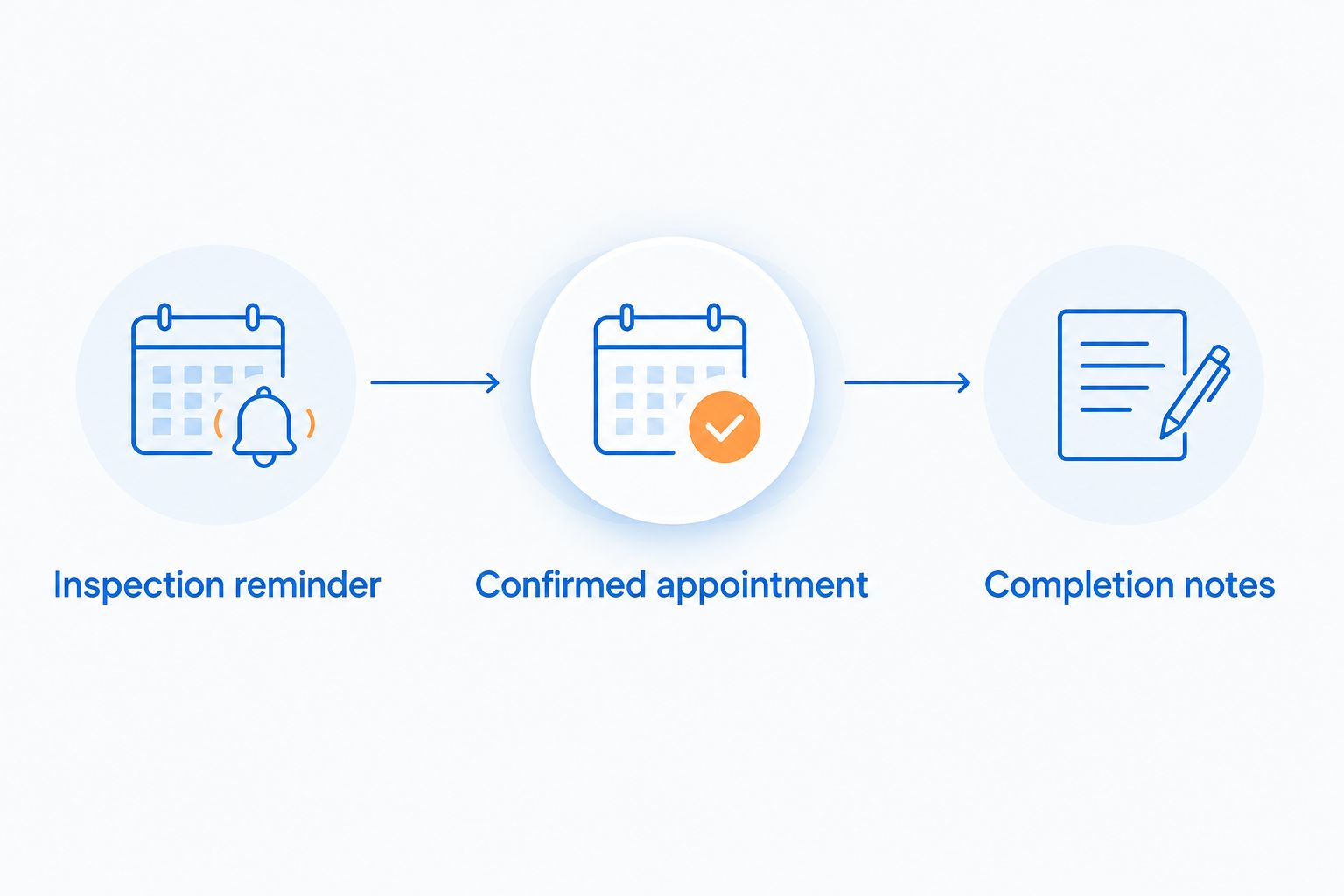
Use this sequence: Inspection reminder, Confirmed appointment, Completion notes. Each stage has a different job; keeping those labels distinct prevents an inspection alert from being mistaken for an upcoming visit.
When you contact Socalemm about pressure washing or exterior cleaning, describe the area you want assessed and any access questions. Add the appointment to your calendar after the schedule and scope are confirmed.
Request an exterior cleaning quote
Describe the area you want cleaned in Newport Beach or Orange County.
Update reminders whenever the schedule changes
You do not need an automated integration to keep an appointment accurate. Edit the existing event as soon as the provider confirms a change; creating another event leaves two dates competing for attention.
Open the appointment, select the pencil-shaped edit control, change the confirmed date or time, and select Save. Recheck its notifications. An alert that worked for the original schedule can fall at an inconvenient time after rescheduling.
For a recurring inspection, Google Calendar asks which events an edit affects. Choose This event for a one-time exception, This and following events for a new schedule from that point onward, or All events when the entire series needs correction.
Expected result: The calendar shows one current appointment, while inspection exceptions stay separate from permanent changes.
If another household member needs the schedule, add that person through Add guests and confirm they received the invitation. Their notification preferences remain their responsibility; your alert settings do not prove their phone will notify them.
For 2026 household planning, appoint one person to update confirmed service dates. Shared visibility helps, but competing edits can still leave everyone uncertain about which arrangement is current.
Troubleshooting
The reminder appears, but the phone stays silent
Open the event and confirm that a notification was saved. Then check the app's account, the calendar's visibility, device notification permissions, and any focus mode. Repeat the temporary-event test after changing settings.
The appointment appears at the wrong time
Check the event's time zone and the calendar account's time-zone settings. Correct the event to match the confirmed appointment, particularly if you created it while traveling. Do not move the service date based only on a misleading display.
The calendar shows duplicate appointments
Search for the appointment title and compare the entries. Keep the event with the current confirmed details and remove the obsolete copy. Do not delete the separate inspection reminder simply because it mentions the same driveway or patio.
Editing one inspection changed the whole series
Check which occurrences changed. Restore the intended recurrence, then make the exception using This event. Use This and following events only when you want the new inspection schedule to continue.
A household member cannot see the event
Confirm the address entered through Add guests, then ask the recipient to check the invitation and the account they use. Sending an invitation is different from sharing an entire calendar; choose the narrower access needed for the task.
Customize your workflow
Expand the descriptions before expanding the number of alerts. Separate driveway, patio, house exterior, and roof inspection tasks when they require different decisions. A roof reminder should prompt an assessment or service inquiry—not instruct you to climb onto the roof or use a pressure washer.
For a commercial property, build a separate event around business access and agreed work. Record who coordinates entry, which areas are included, and any operating-hour restrictions confirmed with the provider. Keep household notes out of that event.
Avoid filling the calendar with recurring bookings that nobody has confirmed. A useful maintenance calendar records decisions; it does not make service commitments on your behalf.
FAQ
How do I set a pressure washing schedule Google Calendar reminder?
Create a timed Google Calendar event, set its recurrence, add a notification, and save it. Use an inspection reminder until a service date is confirmed, then create a separate appointment.
Does adding Socalemm to Google Calendar book a cleaning?
No, adding Socalemm to Google Calendar does not book a cleaning. Arrange the service directly and enter the appointment after the schedule is confirmed.
How often should I repeat a driveway cleaning reminder?
Repeat a driveway inspection reminder at an interval that suits your property, not as an automatic instruction to clean. Use the inspection to decide whether you need a service assessment.
Can Google Calendar remind me before a cleaning appointment?
Yes, Google Calendar lets you add notifications before an appointment. Save the alerts and test your phone's notification permissions before relying on them.
What should I do when my pressure washing appointment changes?
Edit the existing appointment after the provider confirms the new schedule. Check the date, time, time zone, and notifications instead of creating a duplicate.
Can I share the cleaning appointment with another household member?
Yes, you can invite a household member through Add guests in the event editor. Confirm receipt, and have the recipient check their own notification settings.
Should roof cleaning use the same reminder as driveway washing?
No, keep roof inspection and driveway inspection reminders separate. The materials and service questions differ, and a roof reminder should not instruct you to pressure wash or climb onto the roof.
One last thing
The most useful event title describes the next action, not just the service. Inspect driveway tells you what to do; Pressure washing leaves you guessing whether it means inspect, request a quote, or prepare for a visit. Use Confirmed only after the appointment is agreed.