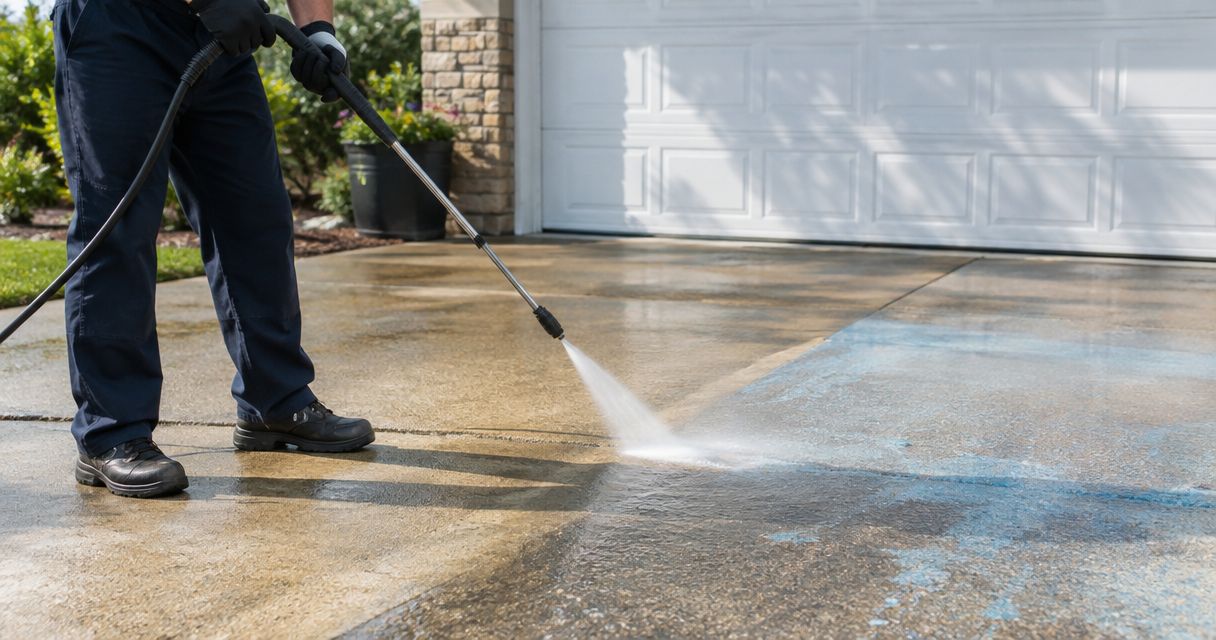

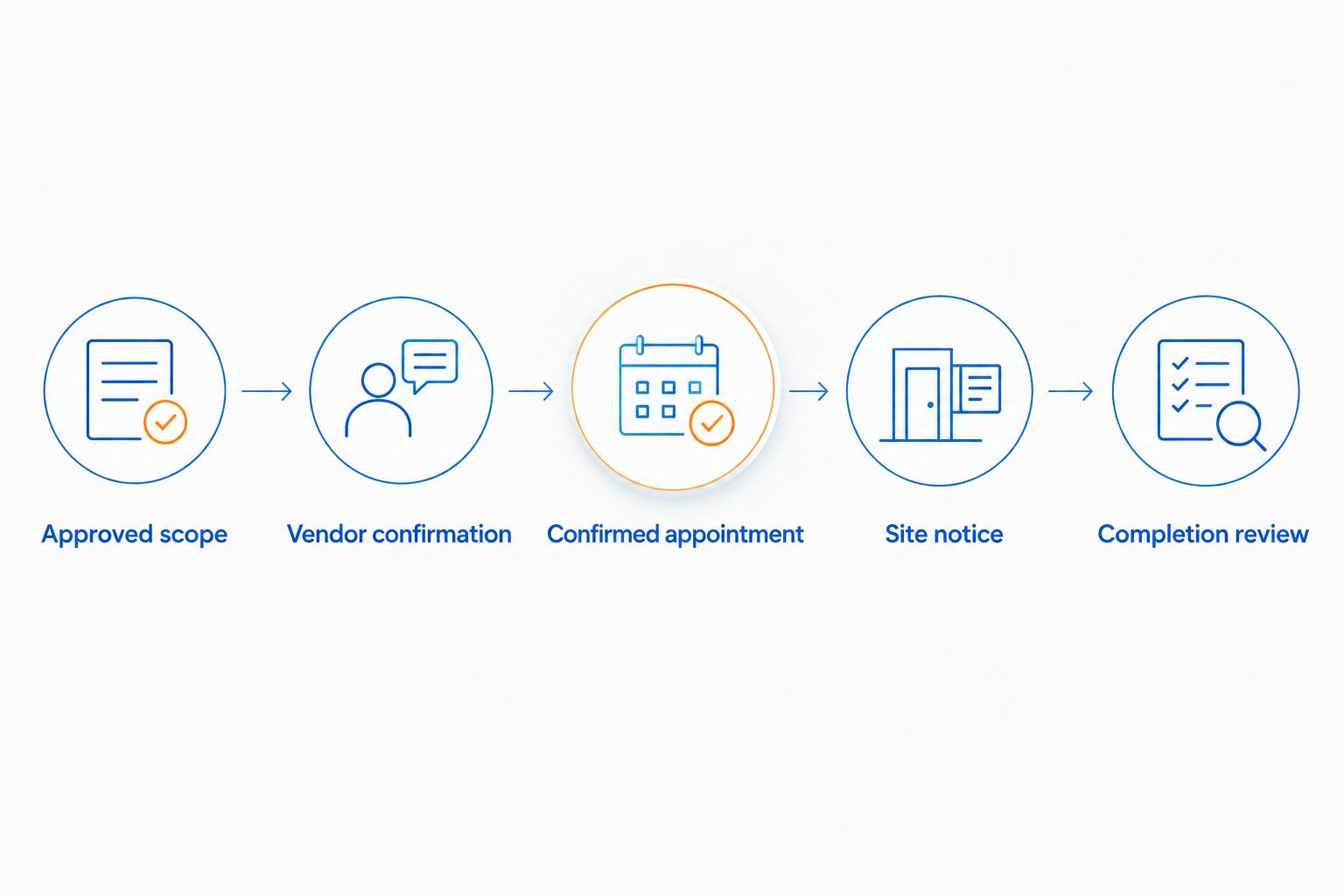
Instead of manually copying Yardi work orders into an exterior cleaning calendar, use an approval-to-scheduling workflow: identify the cleaning request, confirm its scope, reserve a vendor-confirmed appointment, and return completion details to the original record. Start with a controlled manual handoff, then automate only the parts your Yardi administrator confirms your account supports.
- For yardi work orders exterior cleaning, connect approved requests to confirmed appointments—not every new maintenance ticket.
- Socalemm provides exterior cleaning in Newport Beach and Orange County; confirm scope before scheduling.
- Keep the work-order reference attached to scheduling changes, vendor communications, and completion records.
- Automate only through an administrator-approved connection; otherwise use a documented manual handoff.
Why this matters
A maintenance request, an approved cleaning job, and a confirmed appointment are different records of a decision. Treating them as interchangeable creates a schedule nobody has actually agreed to follow.
Socalemm is a fit for Newport Beach and Orange County property managers seeking exterior cleaning services, not software integration services. Use the quote request to describe the cleaning work; have your property-management administrator handle the software connection.
For your 2026 workflow, make Yardi the reference for the request and approval history. Use the cleaning calendar to communicate when approved work will happen. Decide who updates each record before adding automation.
Before you start
- Confirm access and ownership. You need permission to review and update the relevant Yardi work orders, access to the scheduling calendar, and a named person responsible for vendor communication. Ask your administrator which export, notification, or integration methods your account permits.
- Prepare the job information. Gather the property reference, exact cleaning area, surface material, photos, access instructions, approval requirements, and the vendor contact. Keep commercial operating hours separate from residential occupancy instructions.
- Check the appointment gotcha. A requested completion date is not a vendor-confirmed appointment. Keep tentative calendar entries visibly tentative, and do not send occupant notices until the appointment and access arrangements are confirmed.
Yardi configurations differ. The labels below are suggested workflow labels, not claims about buttons or fields in your account. Use your administrator’s documented screen names and permissions when applying this process.
Request intake and approval
Build a cleaning-specific handoff
- Identify the request. Review the work order and determine whether it concerns pressure washing, house washing, roof soft washing, or another clearly defined exterior cleaning task. Do not route every general maintenance request to the cleaning calendar.
- Describe the location precisely. Record the building reference and work area, such as the storefront entrance or shared concrete walkway. A property name alone does not tell the vendor which surface needs attention.
- Describe the condition. Attach relevant photos through your approved process. Separate visible dirt or staining from damaged paint, loose material, drainage concerns, or another condition needing assessment before cleaning.
- Obtain approval. Have the authorized manager approve the cleaning scope before requesting a confirmed appointment. If approval is incomplete, keep the request out of the confirmed schedule.
- Assign an owner. Name 1 scheduling owner for each work order. That person handles vendor confirmation, changes, and completion follow-up.
Expected result: You have an approved request with a clear location, cleaning scope, responsible manager, and scheduling owner. The vendor can assess the work without interpreting a vague instruction such as “clean exterior.”
For a residential rental, include resident-access restrictions and any private outdoor areas excluded from the job. For a commercial property, include public entrances, business operating hours, and areas that must remain accessible. Do not copy a homeowner preparation note into a commercial work order unchanged.
Set the minimum handoff record
Use the following as a specification for your 2026 scheduling process. These are information requirements, not a fixed Yardi field map.
| Information | What to record | Why it belongs in the handoff |
|---|---|---|
| Work-order reference | The original record identifier | Connects scheduling and completion updates |
| Property and area | Building reference and specific cleaning zone | Prevents work at the wrong entrance or surface |
| Approved scope | Surfaces, concerns, and exclusions | Keeps the appointment tied to authorized work |
| Requested window | Preferred timing and access restrictions | Gives the vendor scheduling context |
| Confirmed appointment | Agreed date and arrival window | Separates a request from a booking |
| Responsible person | Scheduling owner and site contact | Makes changes actionable |
Keep access credentials out of broadly shared calendar descriptions. Store sensitive instructions in your approved restricted location and tell the assigned vendor how to obtain them securely.
Scheduling connection
Choose the handoff method
Use a manual handoff until the request-to-calendar mapping works reliably. Automation should copy a defined decision, not make an unclear decision faster.
| Workflow option | Best for | Advantage | Limitation |
|---|---|---|---|
| Manual approved handoff | A team establishing its process | Lets the scheduler review scope and access before booking | Requires someone to enter and reconcile updates |
| Administrator-approved automation | A team with a supported connection and clear rules | Can reduce repeated entry of approved information | Requires permission checks, testing, and exception handling |
For the automated option, ask your administrator to confirm the actual source, destination, and permitted actions. Do not assume a third-party connector supports your Yardi configuration or that a calendar connection can write completion details back.
Connect approval to an appointment
- Define the scheduling condition. Specify that only approved exterior cleaning requests enter the scheduling queue. Document how your team recognizes approval in its actual configuration.
- Carry the reference forward. Include the original work-order reference in the calendar record or approved scheduling system. Keep the description short enough to understand without opening a separate email thread.
- Request vendor confirmation. Send the approved scope, relevant photos, access constraints, and preferred window through your agreed communication channel. Ask the vendor to confirm the appointment before treating it as booked.
- Record the agreed window. Update the calendar and the original request with the same appointment details. Mark unresolved access arrangements as unresolved rather than silently assuming they are settled.
- Notify affected people. Send residents, staff, or tenants the confirmed work area and preparation instructions appropriate to that property. Share only the information each recipient needs.
Expected result: The work order and calendar describe the same approved cleaning job and confirmed appointment. The vendor and site contact know what is happening, where, and when.
Test before using live appointments
Run 2 test cases with your administrator: an approved request that should enter scheduling and an unapproved request that should not. Use designated test records and avoid sending real occupant notifications during the test.
Then test a reschedule. Confirm that changing an existing appointment updates that appointment rather than creating another booking. For your 2026 launch checklist, record who checks failed transfers and who resolves conflicting dates.
If your administrator cannot confirm a supported automated route, keep the manual process. A documented handoff is more useful than an unverified connection that leaves the calendar and work order inconsistent.
Completion records and schedule changes
Close the loop after cleaning
- Collect the completion information. Ask for the work performed, any areas not completed, and relevant completion photos through the agreed channel. Do not treat an elapsed calendar appointment as proof of finished work.
- Review against the approved scope. Have the designated manager check the completion information against the original request. Record exclusions or follow-up work separately from completed areas.
- Update the original work order. Follow your organization’s actual review and closure procedure. Keep the work-order reference attached to supporting records.
- Resolve the calendar entry. Indicate whether the appointment was completed, postponed, or canceled using your team’s chosen convention. Do not leave a canceled visit looking completed.
Expected result: The request history shows what was authorized, what was scheduled, and what was reported complete. Follow-up work remains visible instead of disappearing inside a calendar note.
The pressure washing guide for property managers provides related planning context. Keep that property-level planning separate from the approval and completion history of an individual work order.
Update an appointment when the work order changes
A second useful workflow handles changes to an already scheduled job. Build it around the existing work-order reference, not a fresh booking every time someone edits a description.
- Scope change: Return the request for review when a new cleaning area or surface is added. Ask the vendor to confirm the revised work before retaining the appointment unchanged.
- Access change: Notify the vendor and site contact when entry instructions or operating restrictions change. Confirm that the existing window still works.
- Date change: Agree on the replacement window, update the existing calendar entry, and correct any occupant notice already sent.
- Cancellation: Tell the vendor directly through the agreed channel and update both records. Removing a calendar entry alone is not a cancellation procedure.
Expected result: Changes remain attached to the same job, and everyone receives the revised instructions. Approval, appointment confirmation, and completion review remain separate decisions.
Troubleshooting
The same cleaning job appears twice
Check whether each update is creating a new calendar entry. Require a lookup against the original work-order reference before creating another appointment, and give the scheduling owner responsibility for resolving duplicates before contacting occupants.
The vendor arrives without usable access instructions
Move access confirmation into the pre-appointment checklist. Verify the site contact and access method before confirming the visit; keep sensitive credentials in the approved restricted channel rather than an open calendar invitation.
The calendar shows a booking the vendor never accepted
The workflow has treated a requested date as a confirmed appointment. Restore a tentative designation, contact the vendor, and publish the confirmed window only after agreement. Correct notices that contain the unconfirmed date.
The appointment changed, but the work order did not
Assign responsibility for updating both records. For automation, have the administrator check the permitted update action and its failure reporting; for manual scheduling, require the owner to reconcile the work order immediately after a change.
A completed appointment leaves an unresolved request
Check whether completion evidence reached the manager authorized to review it. Route the report back to the original work order, identify any unfinished areas, and follow the actual closure procedure instead of assuming the calendar closes the request.
Customize your workflow
Start with a clearly defined property area before expanding the process across your portfolio. Use the first completed request to check whether the scope, access notes, appointment confirmation, and completion record stayed connected.
For your 2026 maintenance plan, separate recurring inspection reminders from booked cleaning visits. An inspection can establish whether cleaning is needed; it does not establish the vendor’s appointment or authorize a different scope.
When requesting exterior cleaning from Socalemm, provide the surface, condition, location, and access restrictions. Keep responsibility for Yardi configuration with your administrator and responsibility for property approval with the authorized manager.
Request exterior cleaning
Describe your property, cleaning areas, and access restrictions for a scope discussion.
FAQ
How do I connect Yardi work orders to exterior cleaning schedules?
Route approved cleaning requests to a scheduling owner, obtain vendor confirmation, and record the agreed appointment against the original work-order reference. Automate that handoff only after your administrator confirms the supported connection and permissions.
Does this workflow require a Yardi integration?
No. You can use a documented manual handoff between the approved work order and your scheduling calendar. An automated connection requires separate administrator verification.
Can every new maintenance request create a cleaning appointment?
Do not use every new maintenance request as a confirmed cleaning appointment. Filter for exterior cleaning, obtain approval, and confirm the scope and appointment with the vendor first.
What should an exterior cleaning work order include?
Include the work-order reference, property area, surface material, condition, approved scope, access restrictions, and responsible contact. Add relevant photos through your approved process and protect sensitive access information.
How do I prevent duplicate exterior cleaning bookings?
Use the original work-order reference to check for an existing appointment before creating another. Treat a reschedule as an update to the existing job, not a new booking.
Can Socalemm configure Yardi for my property?
This guide does not offer Yardi configuration services from Socalemm. The company provides residential and commercial exterior cleaning in Newport Beach and Orange County; your administrator should manage software permissions and connections.
When should I close an exterior cleaning work order?
Close it through your organization’s review procedure after the responsible manager reviews the completion information. A calendar appointment ending is not evidence that every approved area was cleaned.
One last thing
Keep the requested date and confirmed appointment separate. That distinction gives your 2026 workflow a clear checkpoint before vendor dispatch, occupant notices, and access preparation. Put it in the handoff instructions before adding another notification or connection.