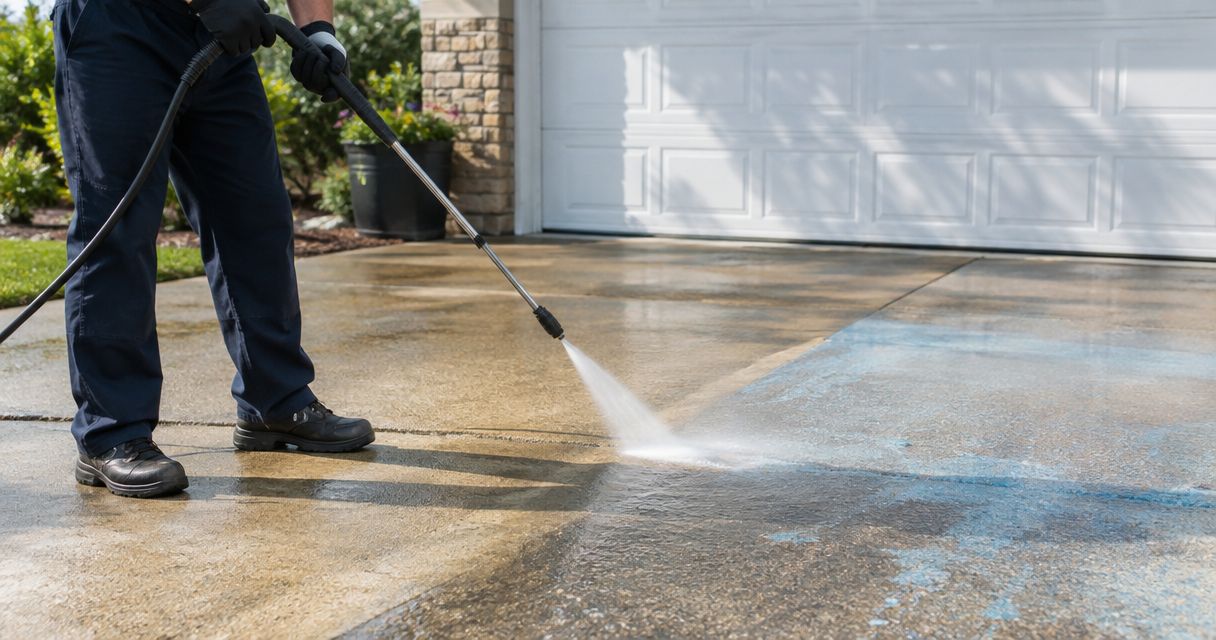

Instead of manually revisiting every Angi pressure washing inquiry, connect each qualified lead to a property record, a completed-job checklist, and a customer-approved maintenance reminder. Keep the reminder separate from the booking: a request for an initial cleaning does not authorize recurring visits.
- For angi leads pressure washing workflows, connect lead tracking to maintenance reminders, not automatic bookings.
- Socalemm provides pressure washing and exterior cleaning for homeowners and businesses in Newport Beach and Orange County.
- Keep house washing, roof soft washing, and hard-surface cleaning scopes separate.
- Record customer approval before turning a maintenance reminder into a scheduled visit.
Why this matters
An Angi inquiry starts a conversation about a particular job. A recurring pressure washing plan needs more information: which surfaces need attention, who approves the work, and when the property should be reviewed again.
Socalemm is best for Newport Beach and Orange County customers seeking residential or commercial exterior cleaning. For service information, start with Socalemm; the workflow below explains how to organize an inquiry without assuming a booking or maintenance agreement exists.
For your 2026 workflow, make approval a required checkpoint. A calendar entry should tell you whether to inspect, contact the customer, or perform approved work—not leave someone guessing which action comes next.
This guide uses a provider-side tracking process. Homeowners can use the same checkpoints to understand what they are agreeing to, but they do not need access to the provider's lead records.
Before you start
- Lead access and permission: You need authorized access to the Angi inquiry and the customer's stated contact preferences. Keep contact details in your working records, not public calendars or shared screenshots.
- A tracking record and calendar: Use a spreadsheet, customer-management system, or job-management system you already control. The field names below are suggested labels you create, not verified Angi buttons or settings.
- The approval checkpoint: Separate permission to discuss a job from approval for future work. Do not assume Angi supplies a particular export, integration, or recurring-booking feature; use authorized manual entry unless your account documents another method.
Before entering live customer information, build a sample property record. Use fictional details and a clearly marked test reminder so nobody mistakes the exercise for an appointment.
Lead intake record
The first configuration unit connects the incoming inquiry to the right property. Do not start with a recurring calendar event; start with a record that preserves what the customer actually requested.
- Create a property record. Add fields labeled Lead source, Property reference, Contact preference, Requested service, and Approval contact in your own tracker. Enter Angi as the source and summarize the original request without expanding its scope.
- Check for an existing record. Match the property and contact details before creating another entry. A repeat inquiry should not produce a second maintenance schedule for the same surface.
- Separate the service areas. Record driveway, patio, exterior walls, or roof as distinct areas when the customer mentions them. Do not turn a driveway inquiry into approval for house washing or roof soft washing.
- Assign the next action. Use a clear status such as Needs clarification, Assessment requested, or Awaiting approval. Give that action an owner so the lead does not sit unassigned.
Expected result: One property record contains the original request, the decision-maker, and the next action. Nothing is booked merely because an inquiry arrived.
For a 2026 intake template, include a source-date field. That date helps distinguish the original inquiry from later conversations, especially when the customer returns with a different cleaning request.
Surface assessment and service scope
A recurring plan should follow the property's condition, not simply repeat the first service description. Establish what needs cleaning before discussing another visit.
- Identify the material. Record the surface type and any known coating, previous repairs, or visible damage. Ask for clarification when a photograph does not establish what the surface is.
- Document the cleaning concern. Separate loose dirt, organic growth, staining, and damaged material in your notes. Do not promise that cleaning will correct deterioration or remove every stain.
- Write the initial scope. Name the areas included, areas excluded, access arrangements, and items the customer needs to move. For roof work, keep the roof soft washing scope separate from driveway or patio pressure washing.
- Record the approval. Store the approved scope and the approving person's name in the private job record. Record proposed changes separately until the customer accepts them.
Expected result: You have an agreed initial job, not an open-ended instruction to clean every exterior surface.
Keep homeowner and commercial records distinct. A homeowner might approve a patio cleaning directly; a commercial property can require a separate approval contact and access instructions. Identify that responsibility rather than assuming the person who submitted the inquiry can authorize ongoing work.
Maintenance reminders and customer approval
After the initial work, connect the completed-job record to a review task. The default should be a reminder to reassess, not an automatic instruction to wash again.
- Record completion. Note the cleaned areas, observed limitations, and any remaining concerns. Keep authorized project photographs attached to the private property record.
- Choose the next review date. Agree when to revisit the property's condition. Base that discussion on the surface and its use rather than applying an unsupported universal cleaning interval.
- Create a separate booking field. Use Review date for the next assessment and Approved service date only for authorized work. Leave the latter empty when the customer has not approved another visit.
- Define the reminder action. Specify whether the task is to request updated photographs, discuss the surface condition, or confirm access for an already approved appointment.
- Save the customer's decision. Mark the response as Approved, Deferred, or Declined in your tracker. A deferral needs a new agreed follow-up action; a decline should not generate repeated booking requests.
Expected result: Your calendar distinguishes a maintenance conversation from a service appointment, and each planned visit has a traceable approval.
Use these separate dates in your 2026 records even if your current tracking system is simple. The distinction matters more than the software.
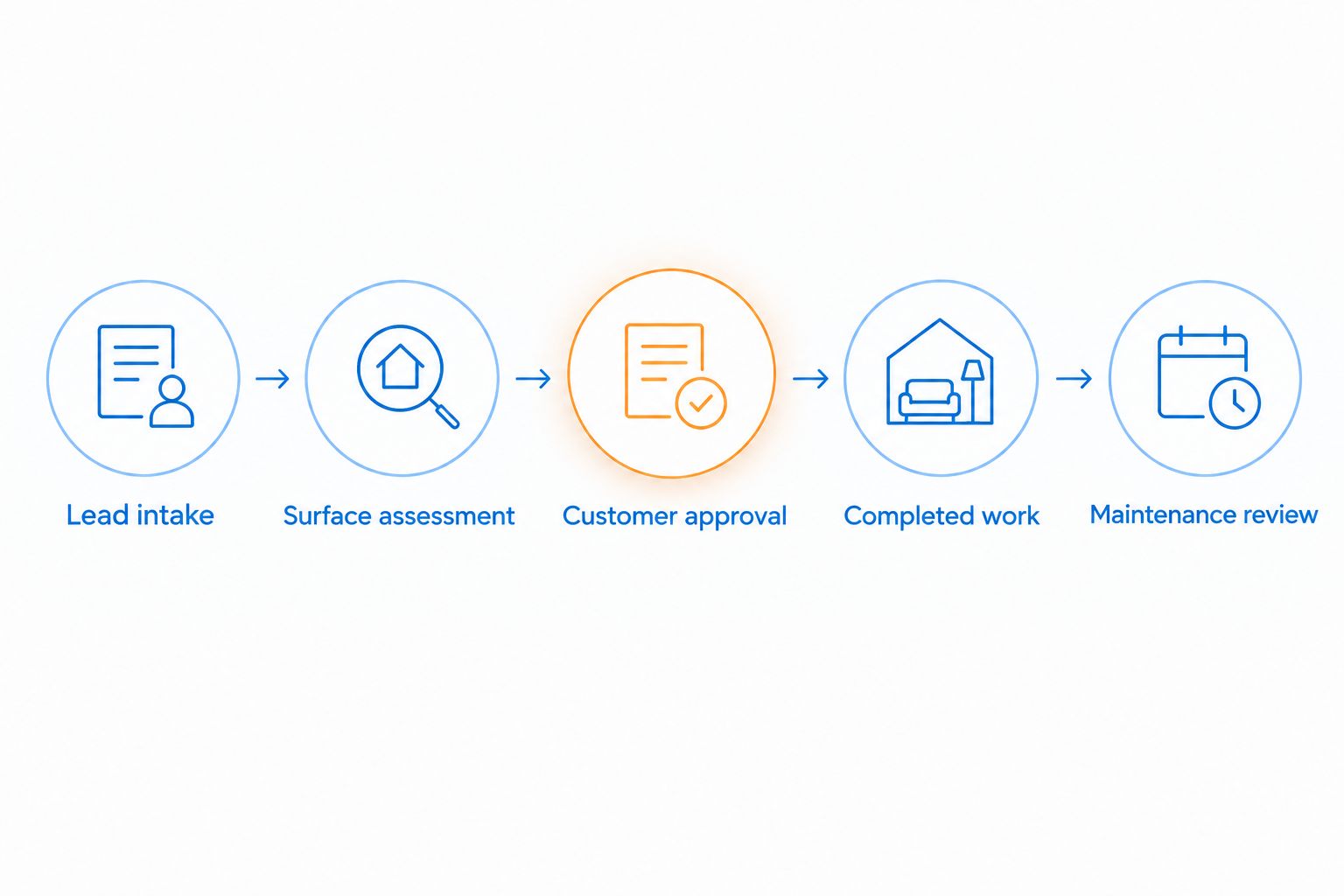
The sequence is straightforward: capture the inquiry, assess the surface, obtain approval, complete the work, and set a review. A future visit returns to the approval checkpoint whenever the scope changes.
Workflow checks before activation
Test the tracking process before using it for real reminders. A successful calendar entry proves that a task exists; it does not prove that the task contains the correct instructions.
- Test a new inquiry. Create a fictional request for a driveway assessment. Confirm that it produces a follow-up task without producing a service appointment.
- Test a repeat inquiry. Enter another request for the same fictional property. Confirm that you can identify the existing record and avoid duplicate reminders.
- Test a declined follow-up. Mark the maintenance proposal declined. Confirm that any pending booking task is removed or closed rather than left active.
- Test a scope change. Add a roof-cleaning request to the fictional driveway record. Confirm that the new area requires its own assessment and approval.
Expected result: The workflow handles new leads, repeat inquiries, declined proposals, and changed scopes without silently booking work.
These are suggested acceptance tests, not claims about Angi's interface. If you later introduce an account-supported connection, repeat the same checks before letting it create live tasks.
Second workflow: update reminders when the property changes
A completed-job follow-up is not the only useful trigger. An existing customer can report new buildup, changed access, or a different cleaning need before the planned review.
For a 2026 maintenance record, treat those updates as reasons to review the plan—not permission to repeat the previous job automatically.
| Workflow option | Best for | Benefit | Limitation |
|---|---|---|---|
| Completion-based review | Customers who want a follow-up after an initial cleaning | Links the reminder to documented work | Does not account for later property changes by itself |
| Condition-based review | Customers reporting a new concern between reviews | Keeps the proposed scope tied to current conditions | Requires fresh information and another approval check |
Choose completion-based review as your starting workflow. Add condition-based review when the customer provides an update that changes the next action.
To handle an update:
- Add the customer's report to the existing property record.
- Identify which surface and approved scope it affects.
- Review any pending reminder before creating another task.
- Request clarification or approval for the revised work.
For homeowners, keep the conversation focused on the requested residential area. For commercial sites, separately confirm the approving contact, operating restrictions, and access arrangements. Do not copy household access notes into a commercial work order.
Troubleshooting
The same property has multiple reminders
Fix: Check the source inquiry and property reference before deleting anything. Keep legitimate tasks for different surfaces, but combine duplicate reminders for the same action under one record owner.
A driveway review and a roof assessment are not automatically duplicates. Label the surface in each task so the distinction remains visible.
A review task looks like a confirmed appointment
Fix: Rename the task to identify the action explicitly, such as Contact customer for review. Keep the service date empty until the customer approves the visit.
For shared calendars, the event title should make that distinction visible without exposing private customer details.
The customer wants a different area cleaned
Fix: Add a revised scope rather than overwriting the original request. Assess the new surface and confirm approval before changing the work order.
The original driveway inquiry does not establish the appropriate method for painted siding, stucco, or a roof.
The reminder reaches the wrong person
Fix: Verify the current approval contact and communication preference before sending another message. Update the property record and any pending task together.
This check is especially useful when a commercial site's day-to-day contact differs from the person authorizing work.
A weather or access change disrupts the visit
Fix: Separate the rescheduling task from the completed-work status. Confirm a revised appointment and access arrangements instead of marking unfinished work complete to clear the calendar.
Preserve the approved scope so moving the date does not accidentally change the job.
Customize your workflow
Start with a single property and its initial service scope. Expand only when the record clearly identifies the surface, approval contact, next action, and service status.
For homeowners considering Socalemm pressure washing, use the quote request to describe the areas that need attention. Include whether you want an initial cleaning assessment or a discussion about future maintenance; do not assume the two requests create the same agreement.
For your internal 2026 process, review these three items before each proposed visit:
- Scope: Does the task still describe the surface and work the customer approved?
- Permission: Is the approval recorded for this visit or arrangement?
- Access: Are the current entry and preparation instructions clear?
Once those checks work reliably, connect approved appointments to your calendar. Keep assessment notes in the property record rather than squeezing the entire job history into an event title.
FAQ
How do I connect Angi leads to a recurring pressure washing plan?
Create a property record from the inquiry, document the initial scope, and set a maintenance review after the work is completed. Keep future bookings separate until the customer approves them.
Does an Angi pressure washing inquiry authorize recurring visits?
Treat an Angi inquiry as a request to discuss the stated job, not approval for recurring visits. Confirm the future scope and approval arrangements directly with the customer.
Do I need an automatic integration to track pressure washing leads?
No. You can use an authorized manual-entry workflow with a property tracker and calendar. Use an automated connection only when your account documentation supports the required access and actions.
How often should a recurring pressure washing reminder run?
Set the review timing around the property's condition, surface, use, and customer preference. A reminder should prompt reassessment rather than require cleaning when the surface does not need it.
Can driveway cleaning and roof soft washing share one recurring task?
Keep driveway cleaning and roof soft washing as separate service scopes, even when they belong to the same property. Their assessment notes, cleaning methods, and approval details should remain distinguishable.
What happens when a customer declines the next cleaning?
Close the proposed booking task and record the decision. Create another follow-up only when it matches the customer's stated preference.
Can I ask Socalemm about ongoing exterior cleaning?
You can contact Socalemm about your residential or commercial exterior cleaning needs in Newport Beach and Orange County. Confirm the proposed scope and any future visit arrangements directly rather than assuming a recurring plan is already established.
One last thing
The most useful recurring event can be an inspection reminder rather than a cleaning appointment. A review lets you confirm the surface still needs work before asking the customer to approve another visit.
Keep a short closure note whenever you decide not to clean. That record explains why a reminder ended without a booking and prevents someone else from restarting the same follow-up unnecessarily.