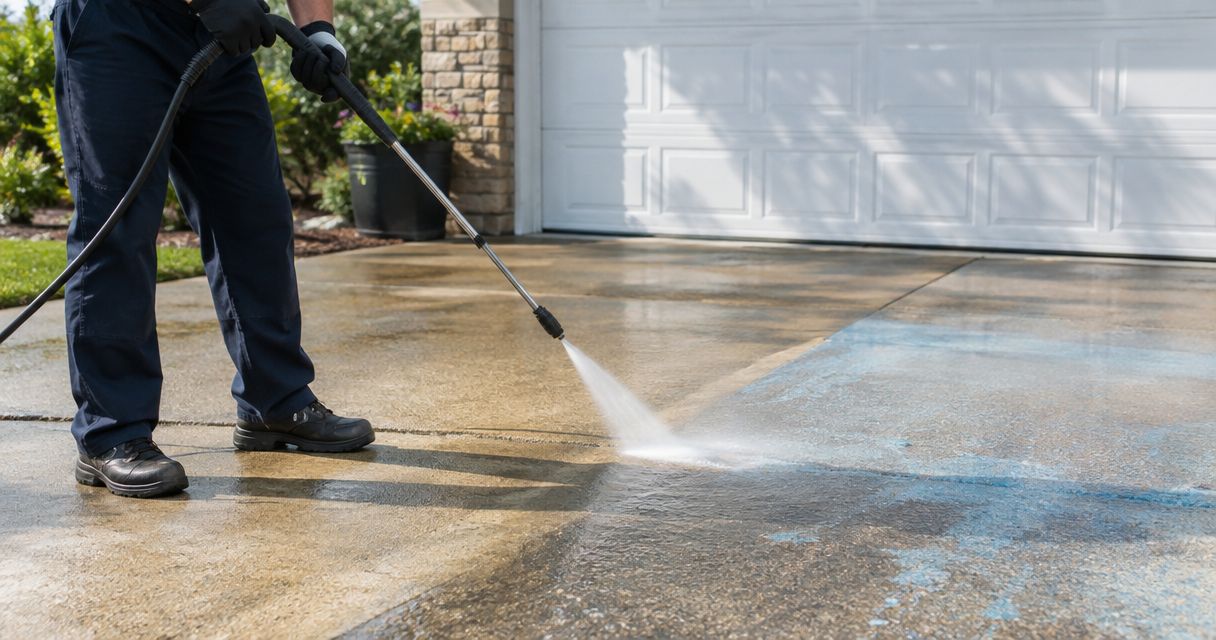

Instead of manually chasing cleaning dates, use Google Calendar reminders to schedule storefront cleaning before health inspection appointments that have a confirmed date. For unannounced inspections, use recurring exterior checks instead; automatic reminders support preparation, but only the cleaning provider can confirm an appointment.
- Use Google Calendar to schedule storefront cleaning before health inspection appointments, then obtain separate vendor confirmation.
- Socalemm provides exterior cleaning for Newport Beach and Orange County businesses; inspection compliance remains the operator’s responsibility.
- For unannounced inspections, schedule recurring condition checks rather than guessing an inspection date.
- Keep requested cleaning, confirmed cleaning, and inspection appointments as separate calendar events.
Why this matters
A calendar reminder is not a cleaning reservation. If your calendar says the storefront needs washing but nobody has accepted the job, the work remains unscheduled.
Socalemm is best for Orange County businesses seeking exterior cleaning, not inspection certification. Use Socalemm for the exterior-cleaning discussion, while keeping food handling, indoor sanitation, pest management, and other inspection responsibilities with your operating team.
For your 2026 maintenance calendar, separate inspection preparation from inspection outcomes. A cleaner entrance does not establish that a business meets every applicable health requirement, and an exterior-cleaning appointment does not guarantee a passing inspection.
The useful automation is straightforward: a dated inspection triggers advance reminders, a manager requests cleaning, and a confirmed appointment triggers access preparation. No booking integration is required for this reminder-based workflow.
Before you start
- Calendar access: Use a Google account with permission to create and edit events on the business calendar. Choose a responsible manager who will receive notifications and follow up on requests.
- Job information: Gather the confirmed inspection date, if one exists, plus storefront photos, surface descriptions, operating hours, delivery windows, and property-manager restrictions. Identify who can authorize work in shared areas.
- The scheduling gotcha: Routine inspections can be unannounced. Do not invent an inspection date, and do not treat an unanswered cleaning request as a confirmed appointment. Use the recurring-check variant below when no date is known.
This guide uses Google Calendar on desktop. The bold labels below refer to its event controls; the example reminder intervals are planning choices, not health-department deadlines or a provider’s promised turnaround.
Inspection calendar setup
Start with a real inspection appointment, not an estimated arrival date. Keep internal preparation notes separate from anything you share with an outside provider.
- Open the business calendar, select Create, then Event. Enter a title such as Inspection preparation — storefront exterior.
- Set the event to the confirmed inspection date and time. Use an all-day event only when you have a confirmed date without an appointment time.
- Record the inspection notice’s source in the event description. Add the responsible manager, the exterior areas to review, and any property-management approvals needed.
- Select Add notification and choose advance reminders. As an example for your 2026 calendar, set reminders for 7 days and 2 days before the inspection; adjust them to the actual coordination time your business needs.
- Use Add guests for the internal manager responsible for preparation, then select Save. Have that manager check the invitation and notification settings in their own account.
Expected result: Your manager sees the confirmed inspection appointment and receives preparation reminders. The event does not book cleaning, notify an inspector of readiness, or establish a compliance deadline.
If the inspection notice arrives after an example reminder would already have passed, contact the cleaning provider directly. A reminder in the past cannot recover the coordination time you have lost.
Storefront cleaning scope
Before requesting work, define what needs cleaning. “Get ready for inspection” is too broad for a provider to assess, especially when the property includes public walkways or shared tenant areas.
- Walk the exterior and list the surfaces you want assessed: the entrance approach, storefront frontage, customer walkway, or outdoor patio, where applicable. Keep indoor kitchen and food-contact cleaning outside this exterior scope.
- Photograph visible buildup and nearby conditions. Include fragile finishes, door thresholds, electrical equipment, landscaping, and drainage features that affect the work area.
- Record operational restrictions. Note customer access routes, deliveries, outdoor seating, neighboring tenants, and any landlord rules for shared pavement.
- Send a request that includes the preferred work window and the inspection date, when confirmed. Ask the provider to assess the cleaning method, access needs, and wash-water handling before you accept a plan.
- Create a separate request-follow-up event with Create and Event. Assign the manager through Add guests, add a notification, and select Save.
Expected result: The provider receives a defined exterior-cleaning request, while your manager has a separate reminder to obtain an answer.
For a 2026 request, describe the actual surface condition rather than asking for an unspecified “inspection wash.” The inspection date explains your timing; photos and surface details explain the work.
Choose the right scheduling trigger
These are scheduling options, not different cleaning methods. Choose the trigger that matches the information you actually have.
| Scheduling option | Best for | Advantage | Limitation |
|---|---|---|---|
| Confirmed-date reminders | Businesses with a scheduled inspection appointment | Connects preparation to a known date | Fails as a planning method when the inspection is unannounced |
| Recurring condition checks | Businesses without a known inspection date | Keeps exterior upkeep independent of inspection timing | Requires a person to assess conditions and request work |
| Confirmed cleaning event | Businesses with an accepted cleaning appointment | Coordinates access and staff preparation | Does not automatically move when the inspection date changes |
Use confirmed-date reminders when the date is known; use recurring condition checks when it is not. In either case, retain a separate confirmed cleaning event so staff can distinguish a request from an accepted job.
Confirmed cleaning appointment
Move from reminders to an appointment only after the provider accepts the work window. Socalemm exterior cleaning requests still require direct coordination; this calendar workflow does not establish a connection to the company’s booking system.
- After receiving confirmation, select Create, then Event. Title the event Confirmed storefront cleaning and enter the agreed date and work window.
- Put the accepted scope in the description. Record included surfaces, excluded areas, the access contact, and any agreed preparations without adding promises the provider has not made.
- Use Add guests for the opening manager or property representative who must coordinate access. Invite the provider only if the provider agrees to use the calendar invitation.
- Select Add notification for staff preparation. An example is 1 day before the appointment, with a separate same-day reminder if your operating schedule requires it.
- Select Save, then confirm that the event matches the written appointment details. Keep a reference to the confirmation in your internal records.
Expected result: Staff can identify the accepted work window, the person responsible for access, and the preparation tasks that must happen beforehand.
Do not assume the provider will monitor calendar edits. If you change a confirmed appointment, contact the provider and obtain a new confirmation before treating the revised time as accepted.
Completion and rescheduling controls
The final part of your 2026 workflow should confirm what happened, not merely that the appointment time passed. A completed calendar event is not proof that every requested surface was cleaned.
- Assign a manager to inspect the exterior after the work. Compare the completed areas with the accepted scope and record any items that need follow-up.
- Keep completion notes separate from inspection results. Store authorized exterior photos without publishing customer identities or sensitive business information.
- If the inspection date changes, open the inspection event and update it. Then review the request-follow-up event and confirmed cleaning event individually.
- Contact the provider before moving an accepted appointment. Once a replacement window is agreed, update the cleaning event and select Save.
- Close the request-follow-up event only when the request is resolved. A declined request needs another action, not a completed-cleaning label.
Expected result: Your calendar distinguishes planned, confirmed, and completed work. A changed inspection date does not silently leave an outdated cleaning appointment behind.
The process follows a simple sequence. Keep each stage visible so another manager can take over without guessing what has already happened.
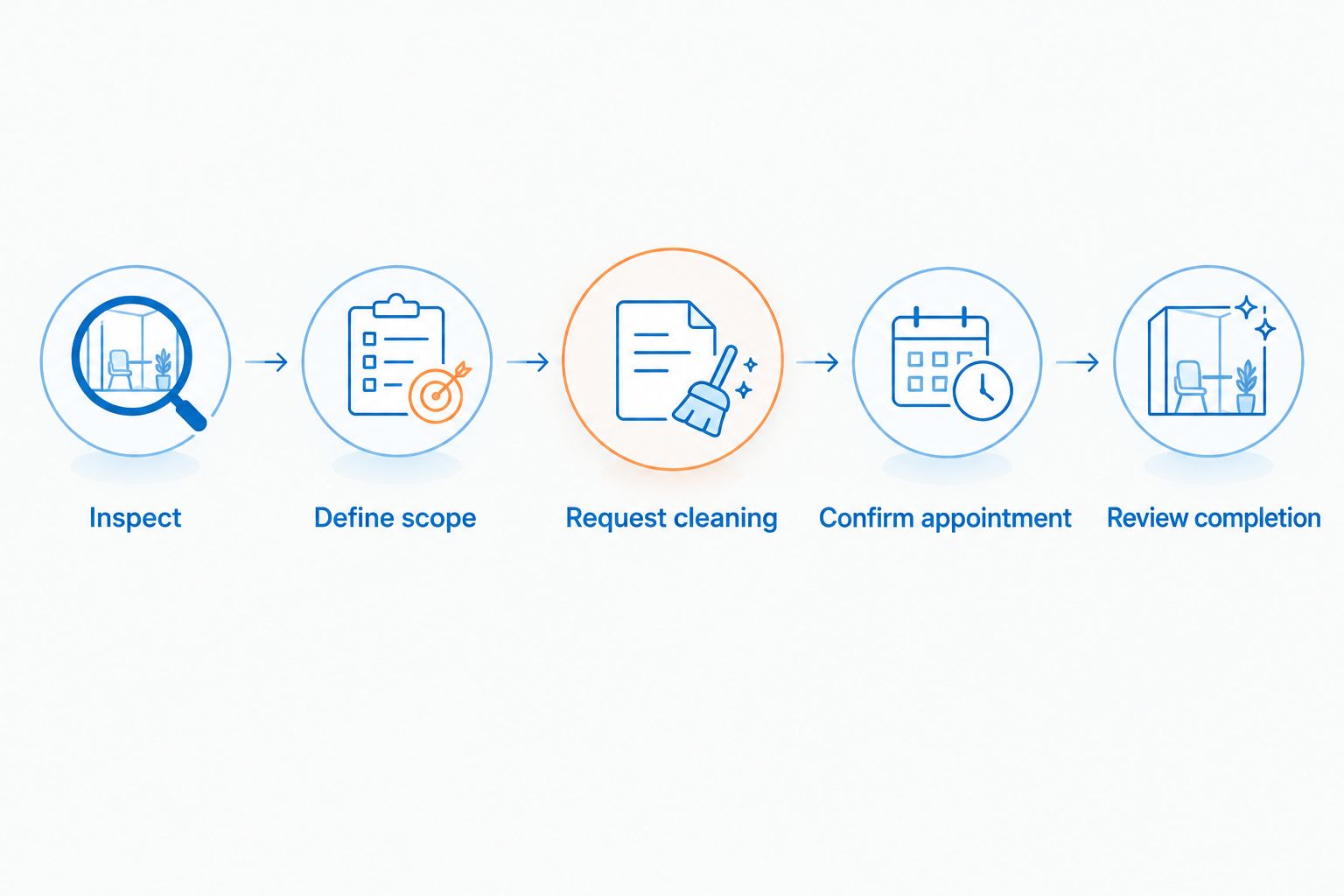
Use the labels Inspect, Define scope, Request cleaning, Confirm appointment, and Review completion in your internal checklist. These describe actions your team can verify rather than implying that a calendar entry completes the work.
Recurring checks when inspection dates are unknown
For unannounced inspections, automate the condition check rather than an imagined inspection countdown. This keeps exterior maintenance useful throughout 2026, not just before a known visit.
- Select Create, then Event, and title the event Storefront condition check.
- Choose a time when the responsible manager can inspect the entrance and surrounding exterior areas. Open Does not repeat and choose the appropriate recurrence, using Custom when needed.
- Assign the manager through Add guests. In the description, list the surfaces to review and the person authorized to request cleaning.
- Add a notification and select Save. After each check, record whether cleaning is needed, already requested, or confirmed.
Expected result: Your team receives recurring prompts to assess actual conditions without pretending to know when an inspector will arrive.
Best for businesses with unpredictable inspection timing: recurring checks provide continuity. Their limitation is human follow-through: the calendar cannot judge buildup, approve the scope, or accept an appointment on your behalf.
Troubleshooting
The reminder arrived, but nobody requested cleaning
A notification needs an owner. Assign one manager to the request-follow-up event and state the required action in its description: assess the exterior, contact the provider, or confirm the appointment.
The provider never received the calendar invitation
Check the address and invitation status, then contact the provider directly. Do not use an unanswered invitation as evidence of acceptance; record an appointment only after receiving confirmation.
Changing the inspection left cleaning on the old date
Separate events do not automatically reschedule each other. Review all related events when a date changes, and obtain the provider’s acceptance before moving the cleaning appointment.
The proposed work blocks the customer entrance
Resolve access before confirming the scope. Discuss customer routes, deliveries, neighboring tenants, and whether the work needs a different operating window; do not assume staff can keep an active cleaning area open.
The storefront looks dirty again before inspection
Check what caused the new buildup and whether it falls within the original scope. Arrange a condition review rather than assuming the earlier appointment covered later spills, deliveries, or other new contamination.
Customize your workflow
For restaurant operators, add exterior coordination to your existing opening and closing procedures without replacing food-safety checks. The restaurant exterior-cleaning guide provides a separate place to develop that scope.
For multiple storefronts, include a location identifier in each event title and assign a manager for each site. Keep property-manager approvals and provider confirmations attached to the correct location; a shared calendar is useful only when staff can tell which entrance and appointment it describes.
When contacting Socalemm, send the surface list, current photos, preferred work window, and any confirmed inspection date. Ask for an exterior-cleaning assessment, not an assurance about the inspection outcome.
Request storefront cleaning
Describe the exterior surfaces, access restrictions, and preferred work window.
FAQ
How do I schedule storefront cleaning before health inspection appointments?
Create advance calendar reminders, request exterior cleaning, and add a separate event after the provider confirms the appointment. Keep the inspection event separate so a reminder is never mistaken for a booking.
Can Google Calendar automatically book storefront cleaning?
The reminder workflow described here does not book cleaning. Google Calendar prompts your manager to act; the provider must separately accept the work window.
What if my health inspection is unannounced?
Use recurring storefront condition checks instead of an inspection countdown. Assign a manager to assess exterior conditions and request cleaning when needed.
How many days before inspection should I arrange cleaning?
Choose the work window with the provider based on scope, access, business operations, and the confirmed inspection date. The example reminders in this guide are planning settings, not required lead times.
Does storefront pressure washing guarantee a passing inspection?
No. Exterior cleaning addresses the agreed exterior surfaces; inspection outcomes depend on the applicable requirements and the conditions assessed by the inspector.
What should I send Socalemm with a storefront cleaning request?
Send current exterior photos, the surfaces you want assessed, operating restrictions, and your preferred work window. Include the inspection date only when it is confirmed, and identify any shared areas requiring property-manager approval.
Should I move the cleaning event when the inspection date changes?
Contact the provider before moving a confirmed cleaning appointment. Update the calendar only after the replacement work window is accepted, then review staff preparation reminders.
One last thing
The easiest scheduling mistake is letting an event title claim more than has happened. Use Request storefront cleaning until the provider accepts the job; reserve Confirmed storefront cleaning for an agreed appointment, and record completion only after someone checks the work.
That small distinction makes your 2026 calendar useful during a handoff. The next manager can see what still needs action without reconstructing a conversation.