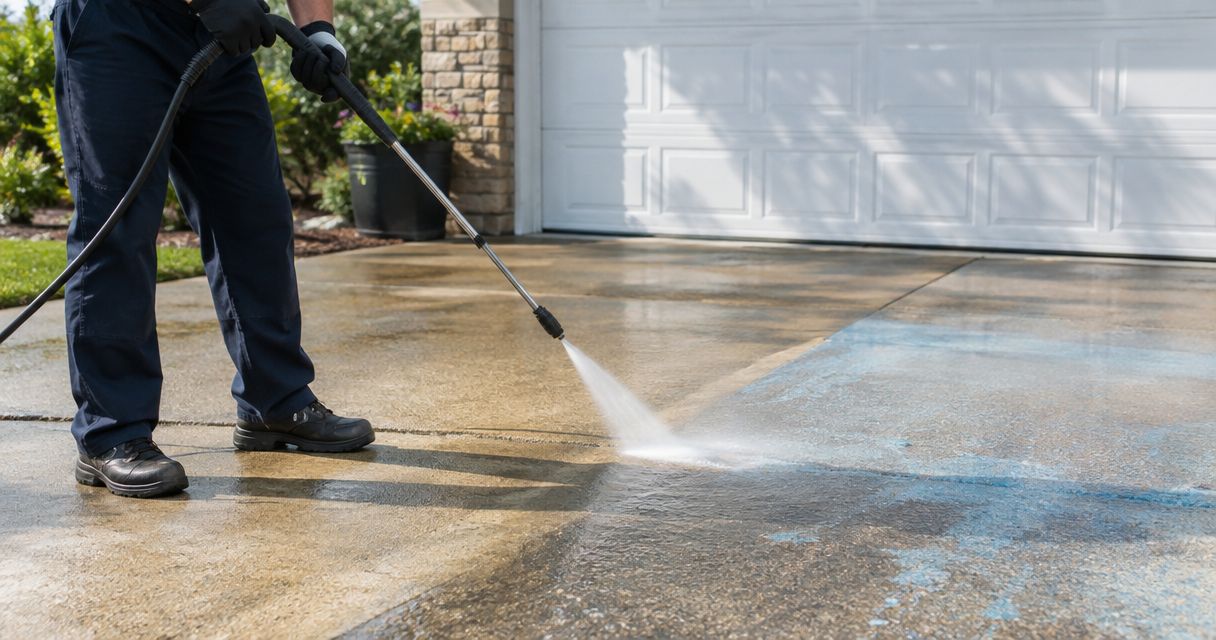

Instead of manually chasing every Thumbtack pressure washing request after the first visit, connect the inquiry to a property record, an approved maintenance scope, and a calendar reminder. This guide shows how to build that recurring-wash workflow without treating a new lead as permission to schedule repeat work.
- A thumbtack pressure washing recurring plan needs customer approval before repeat visits, not just a saved lead.
- Socalemm pressure washing serves homeowners and businesses in Newport Beach and Orange County.
- Separate residential maintenance from commercial cleaning schedules; record the surface, access requirements, and approved work.
- Use a review reminder when the customer has not approved a recurring schedule.
Why this matters
A request describes what someone wants now. A maintenance record explains what needs attention later, who approves the work, and whether another visit is actually authorized. Confusing those records turns a useful follow-up into an unwanted booking.
Socalemm is a fit for homeowners and businesses seeking exterior cleaning in Newport Beach and Orange County. Its stated services include pressure washing, house washing, and roof soft washing; this guide describes a workflow you can build, not an existing subscription or software integration. Review Socalemm for the business's exterior-cleaning services.
For your 2026 workflow, keep the original inquiry separate from the maintenance decision. A homeowner asking for driveway cleaning has not automatically requested ongoing house washing, and a business asking for storefront cleaning has not approved every exterior surface.
The useful connection is between the request, the agreed work, and the next approved action. Automation is optional. Clear permission is not.
Before you start
- Access and materials: Have access to the original Thumbtack conversation, a property record you control, and a calendar or task list. Keep customer information restricted to people handling the job.
- Scope and approval: Gather the requested surface, service location, access notes, and the customer's preferred contact method. Use the original request to prepare questions, not to infer consent to repeat cleaning.
- The gotcha: A lead notification and a confirmed appointment are different events. Do not create a repeating appointment from an inquiry; first establish whether the customer wants a follow-up reminder or an approved recurring schedule.
This is a record-and-reminder workflow. It does not depend on an assumed Thumbtack connector, export feature, or automation setting. Read the request in the account you already use, then enter the necessary information into your own record.
The bold labels below are fields to create in your template, not claims about Thumbtack's interface. Use the same labels throughout your records so another person can understand the next action without rereading the entire conversation.
Request intake
- Create 1 property record per service location. Label it with a private internal reference rather than copying customer details into public documents.
- Add Request source, Requested service, Property type, Service location, and Contact preference. Set the request source to Thumbtack and preserve the customer's wording for the requested work.
- Create Customer request and Confirmed scope as separate fields. Leave the confirmed scope empty until the customer and service provider agree on the work.
- Add Status with plain choices such as Inquiry, Scope review, Approved visit, Completed, and Follow-up due. These are your record labels, not platform settings.
- Record Last updated with the actual date. A 2026 record should show when the information was checked, not just when the inquiry first arrived.
Expected result: You can identify the property, requested work, and current decision without interpreting scattered messages.
Keep residential and commercial records separate at intake. For a home, record homeowner approval and household access considerations. For a business, record the authorized contact, operating-hour restrictions, and the boundaries of the requested work.
Do not copy unnecessary personal information just because it appears in the conversation. The maintenance record needs enough detail to arrange the work, not a complete duplicate of every message.
Intake example: a driveway request
Suppose the inquiry asks about a residential driveway. Record driveway cleaning as the requested service; do not add a roof or patio to the confirmed scope because those surfaces appear in a photograph.
Ask whether the customer wants only the current cleaning or would also like a future condition check. The distinction belongs in the record before any repeating reminder is created. For surface-specific context, use the guide to driveway cleaning services in Orange County.
Maintenance scope
- Create Surface, Condition notes, Approved work, and Excluded work. Record visible concerns without diagnosing a material from an unclear photograph.
- Confirm which cleaning service matches the surface. Pressure washing, house washing, and roof soft washing are separate service descriptions; do not use them interchangeably.
- Add Approval contact and Approval record. Preserve the customer's agreement to the scope and whether it covers one visit, future reminders, or a recurring schedule.
- Create Scheduling basis. Write the actual basis: a customer-approved interval, a condition review, or a date to discuss another visit.
- Add Access requirements and Site preparation. Record only requirements that have been discussed, including gates, parked vehicles, pets, or business access where relevant.
Expected result: The maintenance record describes what is authorized and how the next action will be decided.
Set frequency from the property and customer agreement, not from the lead source. A Thumbtack inquiry does not establish how often a driveway, house exterior, or roof needs cleaning. Avoid assigning every property the same interval.
For a 2026 maintenance record, distinguish an agreed service interval from a suggested review date. The former can support scheduling within the customer's permission; the latter means checking conditions and asking before arranging another service.
| Workflow option | Best for | Benefit | Limitation |
|---|---|---|---|
| Single approved visit | Customers requesting a defined cleaning job | Keeps the commitment limited to the agreed work | Does not establish future maintenance |
| Condition-review reminder | Homeowners who want to reassess exterior surfaces later | Allows a decision based on the property's condition | Requires another conversation before booking |
| Customer-approved recurring schedule | Customers who have explicitly agreed to repeat work | Gives each visit an established scheduling basis | Still requires attention to access and scope changes |
These are workflow choices, not named plans offered by Socalemm. For residential customers, a review reminder is the appropriate starting point when repeat work has not been approved. For commercial customers, record who can authorize changes rather than assuming any staff member can approve them.
Calendar and approval controls
- Create 2 date fields per visit: Review date and Confirmed visit date. Keep the confirmed visit date empty until the appointment is agreed.
- Make a calendar task from the review date. Use a title such as Review driveway condition, not a title that presents unapproved work as booked.
- Add the property reference, approved scope, and next action to the task. Keep detailed customer information in the restricted property record rather than a broadly shared calendar.
- If a recurring schedule is approved, record that approval before creating repeating appointments. Follow the agreed scheduling conditions and distinguish proposed dates from confirmed dates.
- Run 3 checks before each visit: approval, access, and scope. If any check fails, resolve it before treating the appointment as ready.
Expected result: Your calendar distinguishes a reminder to ask from permission to perform the work.
The workflow should follow this sequence: Request intake, Scope approval, Visit confirmation, and Completion review. No calendar shortcut should bypass scope approval.
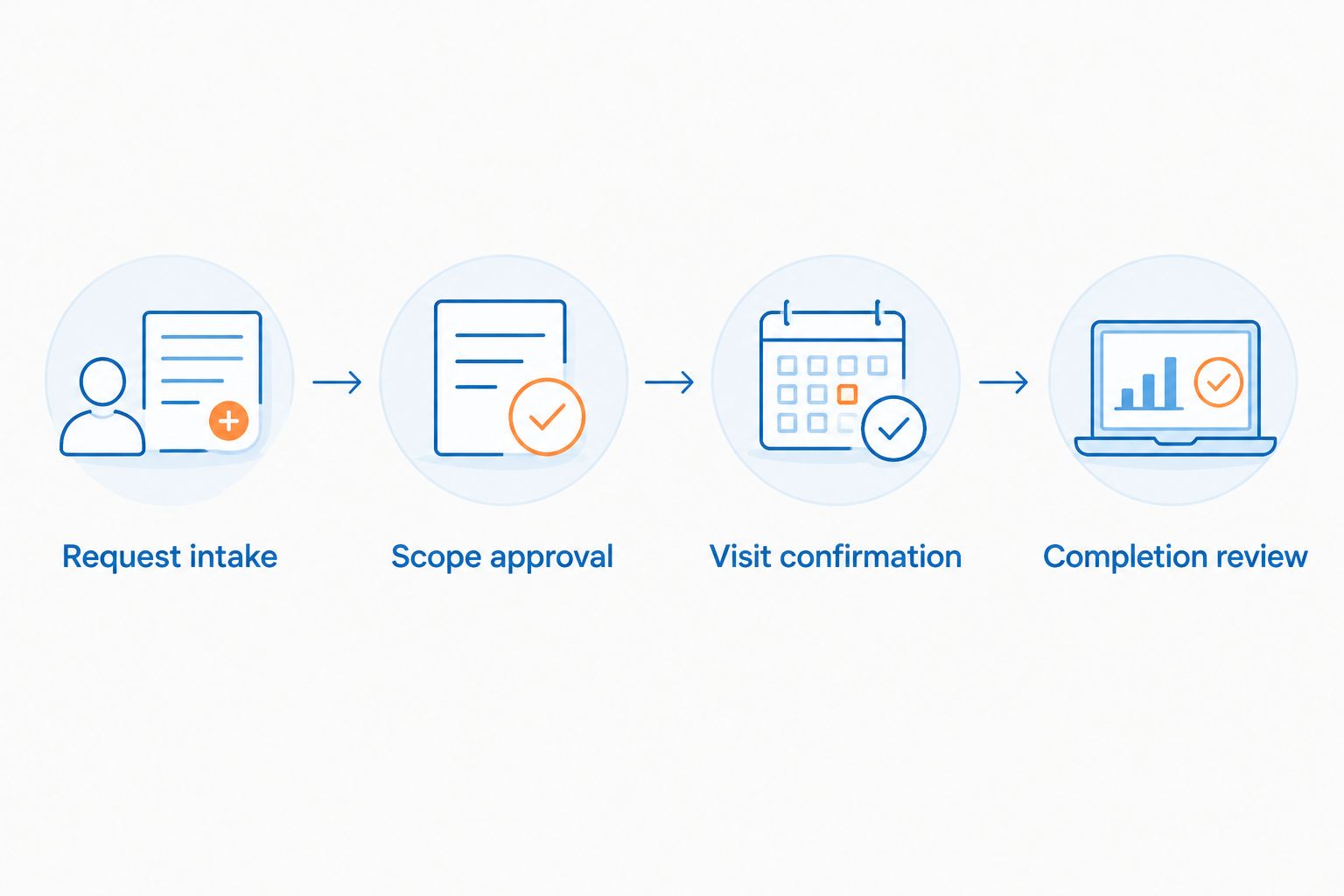
Treat your 2026 calendar as an action list, not evidence of customer permission. A repeating event shows what someone entered into a calendar; the approval record explains what the customer agreed to.
If you later use automation, preserve this separation. A workflow can create an internal review task from an inquiry, but an inquiry alone should not trigger a customer-facing appointment confirmation.
Completion record
- Mark Completed work with the surfaces actually cleaned. Keep excluded areas visible rather than silently carrying them into the next visit.
- Update Condition notes with relevant observations. Keep factual notes separate from recommendations requiring further assessment.
- Record Customer follow-up and Next action. Examples include Discuss another visit, Review condition, or Confirm approved schedule.
- Update the calendar from that next action. Remove obsolete tasks so the original reminder and a new reminder do not both prompt contact.
- Preserve the original request and approval record. Do not overwrite the initial scope with the completed-work summary.
Expected result: The next reminder reflects the completed job and current agreement, not an old inquiry.
If you use project photos, keep them with the appropriate record and obtain permission before publishing them. A maintenance file is not permission to share a customer's property, name, or address in marketing.
Keep the 2026 completion date attached to the work it describes. When conditions change later, add a new observation rather than making an old note appear current.
Update the plan when the customer changes the request
An adjacent workflow handles changes after the initial approval. Use it when the customer changes access instructions, asks about another surface, or wants to pause future scheduling.
- Record the change under Change request without deleting the previous agreement.
- Identify what the change affects: scope, access, contact, or scheduling.
- Pause affected appointments until the new arrangement is confirmed.
- Update Approved work, Approval record, and the relevant dates after agreement.
- Close outdated reminders so they cannot trigger work under the previous arrangement.
Expected result: The property record and calendar describe the same approved work.
For a homeowner, adding patio cleaning is a scope change, not an automatic extension of driveway cleaning. For a business, a new contact or changed access window needs its own record update. Do not treat either change as permission to expand the cleaning area.
Troubleshooting
The same inquiry creates duplicate records
Search existing property records before creating another one. Keep separate service locations separate, but consolidate repeated inquiries about the same location when they concern the same request.
Use the property reference and request context to identify duplicates. Do not merge records solely because two contacts share a surname.
A reminder is mistaken for a confirmed appointment
Rename the task so it states the action: Review condition or Confirm next visit. Remove any customer-facing confirmation that was created without agreement and correct the record before rescheduling.
The fix is a status distinction, not another reminder. Keep Review date separate from Confirmed visit date.
An added surface receives the original cleaning method
Return to scope review. A roof, house exterior, and driveway are not interchangeable surfaces, and an approved driveway job does not authorize roof work.
Record the added surface as a new request until the appropriate service and scope are confirmed.
Customer details appear in a shared calendar
Replace detailed personal information with the private property reference. Keep contact details and access instructions in the restricted record available to the people handling the visit.
Review existing calendar entries too. Fixing the template does not remove information already copied into older appointments.
The customer pauses recurring work
Stop future scheduling and update the approval record. Retain the completed-work history, but do not let an old repeating task reopen the schedule automatically.
A pause is not a new review date unless the customer agrees to a later check-in.
Customize your workflow
Expand the record only when a field changes a decision. Homeowner records can distinguish driveway, patio, house, and roof requests without bundling them into one assumed maintenance package.
Commercial records need a separate approval path. Record the responsible business contact, access restrictions, and requested exterior area; do not reuse household preparation instructions for a storefront or fleet-cleaning request.
Keep the workflow small enough to maintain after every visit. A detailed template that stays out of date is less useful than a short record with current scope, approval, and next-action fields.
For Socalemm pressure washing inquiries, begin with the requested exterior-cleaning service and location. Discuss recurring work separately rather than presenting this workflow as an established company plan.
Discuss your exterior-cleaning request
Start with the surface, service location, and work you want considered.
FAQ
How do I set up a thumbtack pressure washing recurring plan?
Connect the request to a property record, confirm the cleaning scope, and record the customer's permission before scheduling repeat work. Use a review reminder instead of a repeating appointment when recurring service has not been approved.
Does this workflow automatically connect Thumbtack to my calendar?
No, this guide describes a record-and-reminder workflow rather than a verified automatic integration. Enter the required information into your own record and calendar without assuming a connector or export feature exists.
Can I turn every pressure washing request into recurring work?
No, a new request does not authorize recurring work. Ask whether the customer wants a single visit, a future condition review, or an agreed recurring schedule.
How often should I schedule a homeowner's exterior cleaning?
Base scheduling on the property, surface, condition, and customer agreement rather than a universal interval. Keep a proposed review date separate from a confirmed service appointment.
Should roof soft washing use the same scope as driveway cleaning?
No, roof soft washing and driveway cleaning need separate scope decisions. Confirm the surface and appropriate service before adding roof work to a maintenance record.
What should I do when a customer changes the recurring schedule?
Record the change and pause affected appointments until the new arrangement is confirmed. Update the approval record and remove obsolete calendar tasks.
Does Socalemm offer the recurring plan described here?
This guide does not establish that Socalemm offers a recurring plan. It explains how to organize requests and approvals; discuss the specific service and scheduling arrangement directly with the business.
One last thing
A recurring workflow does not require a recurring appointment. A condition-review reminder gives you a next action without committing the customer to another cleaning.
That distinction makes the record useful even when the homeowner wants to decide visit by visit. Before adding another template field or automation, check that the next task says exactly what is authorized: review, discuss, confirm, or perform approved work.