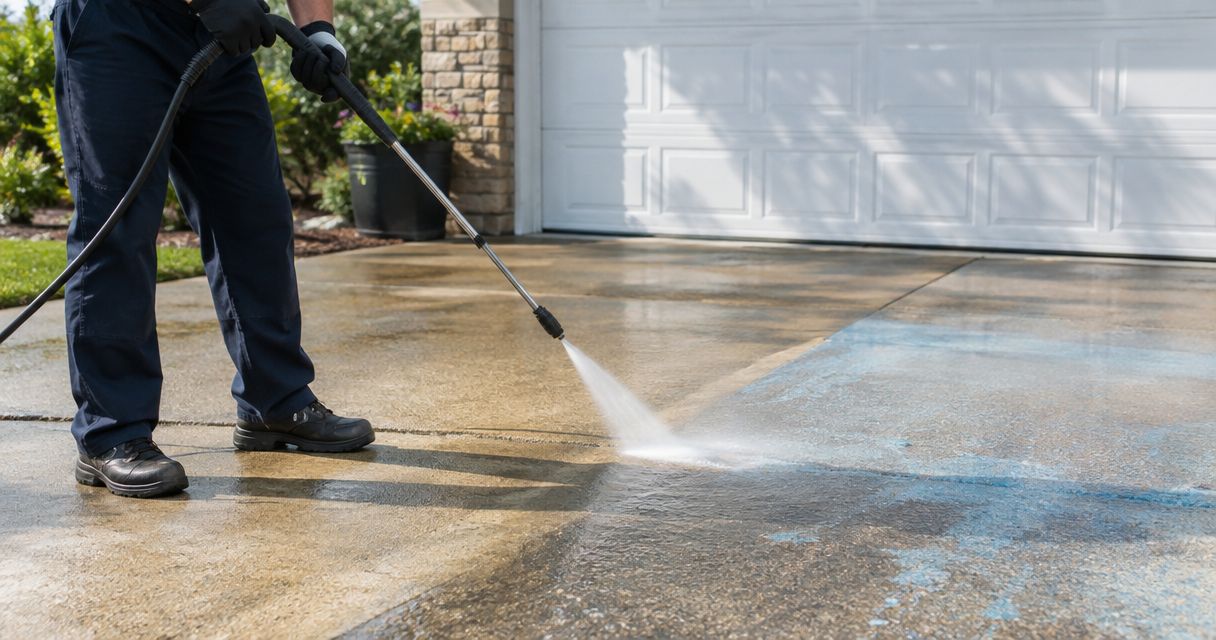

Instead of manually forwarding exterior-cleaning requests and chasing separate email threads, use an AppFolio work order to keep the scope, vendor handoff, approval, and completion evidence together. This 2026 guide explains an AppFolio work order exterior cleaning vendor workflow for property managers, with a direct handoff rather than an assumed software integration.
- An AppFolio work order exterior cleaning vendor workflow needs a clear scope, authorized handoff, and completion record.
- Socalemm provides exterior cleaning services for homeowners and businesses in Newport Beach and Orange County.
- Keep vendor assignment separate from permission to start work.
- Use pressure washing or roof soft washing descriptions that match the surface and requested service.
Why this matters
An exterior-cleaning request needs more than a property address. A vendor needs to know which surfaces you want cleaned, how to reach them, and whether the request is for an inspection, a quote, or approved work. Without those distinctions, a forwarded maintenance request leaves essential decisions unresolved.
Socalemm is best suited to exterior cleaning requests from homeowners and businesses in Newport Beach and Orange County. Use Socalemm for the local service discussion; use your property-management record to document the scope and authorization. This guide does not assume that the vendor has an AppFolio account or that a direct connection has been configured.
For your 2026 workflow, keep the operational boundary clear: AppFolio holds the management record, while the cleaning vendor receives the information needed to assess and perform the requested service. Sending a work order is a handoff, not proof that someone accepted the job.
Before you start
- Confirm access and authority. Have access to the relevant property and work order, the vendor's confirmed contact details, and your organization's rules for approving maintenance. Identify who can approve the cleaning scope and who can authorize a change.
- Gather the site materials. Collect property details, current photos, surface descriptions, access instructions, and resident or business restrictions. For commercial work, identify the person responsible for access and public-facing activity.
- Check the handoff before scheduling. Confirm how the vendor receives work orders and returns updates. Assigning a vendor in a management system does not establish that the vendor can open attachments, enter the site, or begin work.
Do not make a resident's request the final cleaning specification. A report of a slippery walkway describes a condition; it does not establish the cause, the correct treatment, or permission to clean adjacent surfaces. Preserve the original report, then add an approved scope.
Work order scope
Define the cleaning request
- Open the relevant AppFolio work order or create the request through your organization's existing maintenance process. Check the property and affected area before adding vendor instructions.
- Describe the work by surface and location: driveway, patio, exterior wall, roof, walkway, or storefront. Separate distinct surfaces instead of writing a catch-all instruction such as clean outside.
- Add current photos and describe what prompted the request. Distinguish visible dirt or staining from reported damage; do not diagnose a problem from a photograph alone.
- State the authorization stage explicitly: quote requested, inspection requested, or work approved. Include the approving person's role and any restrictions already agreed with the property owner or manager.
Use 1 work order per independently approved scope as your default. That is a recordkeeping recommendation, not an AppFolio requirement. A roof-cleaning request and a storefront-cleaning request can involve different access arrangements and approvals, even at the same property.
For a residential request, identify private patios, resident possessions, gates, and any areas excluded from cleaning. For a commercial request, identify entrances, customer access, delivery areas, and operating restrictions. Keep those instructions separate; a residential access note is not a commercial site plan.
Expected result: The work order tells the vendor what needs assessment or cleaning, where it is, and whether work is authorized. Someone unfamiliar with the original request can understand the assignment without reconstructing a conversation.
Match the scope to the surface
Pressure washing and roof soft washing are service descriptions, not interchangeable instructions. Name the requested surface first and ask the vendor to confirm the treatment before authorizing it. Do not specify high pressure for a roof or fragile finish simply because the original maintenance request used the phrase pressure wash.
For your 2026 scope template, include exclusions beside the requested work. For example, a patio-cleaning request should say whether furniture must remain in place and whether adjoining walls are outside the assignment. That avoids turning a limited request into an undefined exterior-cleaning job.
Vendor handoff
Choose the delivery route
A direct handoff is the starting point when you have not established a vendor-facing software workflow. A shared system workflow is useful only when both parties have confirmed the access and process. Neither route removes the need for approval.
| Workflow | Best for | Advantage | Limitation |
|---|---|---|---|
| Direct handoff | A vendor using an agreed email or other authorized delivery channel | You can send a defined scope without assuming vendor software access | You must bring replies and completion evidence back into the work order |
| Shared system workflow | A vendor with confirmed access to your configured process | Both parties can follow the agreed record-based process | Access, permissions, attachments, and update responsibilities need checking first |
Choose the delivery route the vendor can actually use. Do not introduce a connector or automated message until the manual handoff works and your organization has approved the access involved.
Send a complete assignment
- Confirm the vendor identity and delivery destination against your approved vendor record. Use verified contact information rather than copying an address from an unrelated email thread.
- Associate the vendor with the work order through your account's permitted process. Treat that association as recordkeeping; separately confirm how the actual assignment reaches the vendor.
- Send the approved scope, relevant photos, property access instructions, and the work order reference through the agreed channel. Share only information needed for the job.
- Request acknowledgment of receipt and ask the vendor to identify unresolved questions. Record the response in the work order before treating the assignment as accepted.
Send a scope summary that stands alone. The message should identify the affected area, requested service, authorization stage, exclusions, and the person to contact about access. Do not require the vendor to read an entire resident message history to locate those instructions.
Expected result: The intended vendor receives a usable assignment and confirms whether it can assess or perform the requested work. Your record contains that acknowledgment, not just evidence that a message was sent.
Approval and site access
Resolve the visit details
- Review the vendor's response against the requested scope. Resolve questions about surfaces, exclusions, access, and the proposed cleaning approach before approving work.
- Confirm the authorization with the responsible manager or owner. Keep a request for a quote separate from permission to begin cleaning.
- Agree on access arrangements and any resident or business notifications. Specify who opens gates, moves relevant items, and answers questions during the visit.
- Record the agreed scope and visit arrangements in the work order. Send changes through the same agreed communication route so the vendor receives the current instructions.
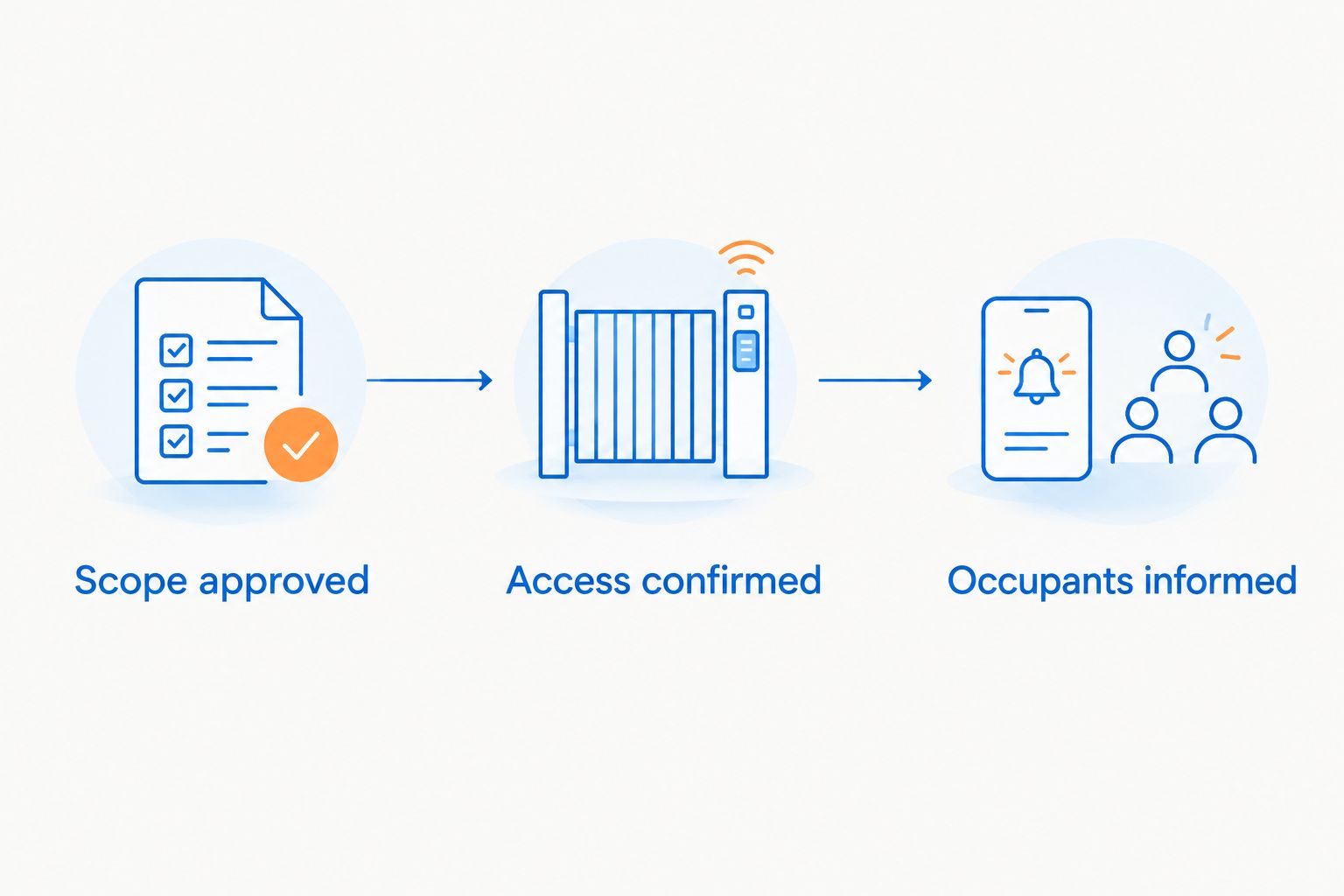
Use 3 checks before a visit: scope approved, access confirmed, and affected occupants informed as required by your management process. These are workflow controls, not a claimed platform feature.
For residential work, explain which outdoor areas the vendor can enter and which belongings the resident must move. Do not include unnecessary personal details. For commercial work, agree on how cleaning will interact with entrances, pedestrian activity, and business operations; do not assume a storefront can close during the visit.
Expected result: The vendor has a defined assignment, a usable access plan, and clear limits on authority. Residents or business contacts receive the instructions relevant to their part of the visit.
Completion record
Verify the result before closing
- Request a completion summary that identifies the areas cleaned and any areas left unfinished. Ask the vendor to distinguish completed work from recommendations for another visit.
- Collect 2 photo sets: before and after. Use comparable viewpoints where practical so the record shows the same surfaces rather than unrelated views.
- Compare the completion information with the approved scope. Record unresolved questions, access problems, or reported damage separately from the cleaning outcome.
- Close the work order only after the responsible person accepts the completion evidence under your organization's process. Keep the vendor's report and the manager's acceptance distinct.
A photograph supports the record, but it does not prove every condition has been resolved. Check the requested areas and note what was not visible or accessible. Avoid marking a roof, wall, or walkway complete solely because another part of the property looks clean.
For your 2026 completion template, separate three statements: what was requested, what the vendor reports completing, and what management accepted. This makes later questions easier to answer without rewriting the job history.
Expected result: The closed work order contains the approved assignment, the completion evidence, and the acceptance decision. Follow-up work remains identifiable rather than disappearing inside a general completed note.
When the work order scope changes
Use the same workflow when an existing request changes, but treat the revision as a new approval decision. Additional photos or a resident reply do not automatically authorize more cleaning.
- Describe the change in the work order and identify the affected surface or area.
- Ask the vendor whether the change alters the cleaning approach or access requirements.
- Obtain the required approval before directing additional work.
- Send the revised instructions and request acknowledgment. Clearly distinguish them from the earlier scope.
Keep independently approved follow-up work separate. If a completed driveway request leads to a new roof-cleaning request, create a distinct record under your management process rather than silently expanding the completed assignment.
For recurring exterior cleaning, reuse the checklist, not the previous approval. Refresh photos, site contacts, access restrictions, and the requested scope. A 2026 template helps standardize the handoff; it does not establish that last visit's conditions still apply.
Troubleshooting
The vendor never acknowledges the assignment
Check the delivery destination and confirm the agreed channel directly with the vendor. Resend only the current scope, then record the acknowledgment. Do not equate a saved vendor assignment with accepted work.
The vendor cannot open the photos
Check whether the files or shared location require access the recipient does not have. Provide an authorized, readable copy through the agreed channel and ask the vendor to confirm it can view the relevant images. Do not make resident information public to solve an attachment problem.
The vendor arrives without usable access
Confirm the gate arrangement, site contact, and permission to enter before rescheduling. Correct the work order and send the updated access instructions. Avoid putting reusable access credentials into broadly distributed messages.
The completed work does not match the request
Compare the vendor's completion summary with the approved surfaces and exclusions. Identify the unresolved area specifically and request clarification. Do not close the request with a general clean-up note that conceals unfinished scope.
Customize your workflow
Create separate residential and commercial templates. Both need scope, authorization, access, and completion evidence, but their site instructions differ. Residential templates should address resident belongings and private outdoor areas; commercial templates should address entrances, operating restrictions, and the responsible business contact.
For Socalemm exterior cleaning requests, keep the service discussion focused on the property and surfaces in Newport Beach or Orange County. Do not add unsupported assumptions about software access, scheduling commitments, or policies to the vendor record.
Discuss your exterior cleaning scope
Describe the surfaces and access needs for your Newport Beach or Orange County property.
FAQ
How do I connect an AppFolio work order to an exterior cleaning vendor?
Define the scope, confirm the vendor's delivery channel, send the authorized assignment, and record acknowledgment and completion. Use your account's permitted vendor-assignment process without assuming the vendor has software access.
Does assigning a vendor authorize exterior cleaning?
Vendor assignment and authorization should remain separate decisions. State whether you want an inspection, a quote, or approved work, and identify who can approve scope changes.
Does Socalemm have a direct AppFolio integration?
Confirm the work order delivery method directly with Socalemm before configuring a software connection. This guide describes a vendor handoff workflow, not a claim of an existing integration.
What photos should I attach to an exterior cleaning work order?
Attach current photos showing the requested surfaces and their surrounding access areas. Ask for comparable completion photos so management can review the same areas afterward.
Can I include roof cleaning and driveway cleaning in one request?
Keep them together only when the approval, access arrangements, and completion review clearly cover both scopes. Otherwise, separate the assignments so one completed surface does not conceal unfinished work elsewhere.
How should I handle a work order that changes after assignment?
Record the revised scope, obtain the required approval, and ask the vendor to acknowledge the updated instructions. Do not treat a new resident message as permission for additional work.
What should commercial exterior cleaning instructions include?
Include the affected surfaces, entrance and pedestrian arrangements, operating restrictions, and the responsible site contact. Keep these details separate from residential access instructions.
One last thing
A clean-looking after photo is not the same as a completed work order. Match the evidence to the approved scope, including excluded and unfinished areas. The most useful closing note explains what happened without requiring the next property manager to contact everyone involved.