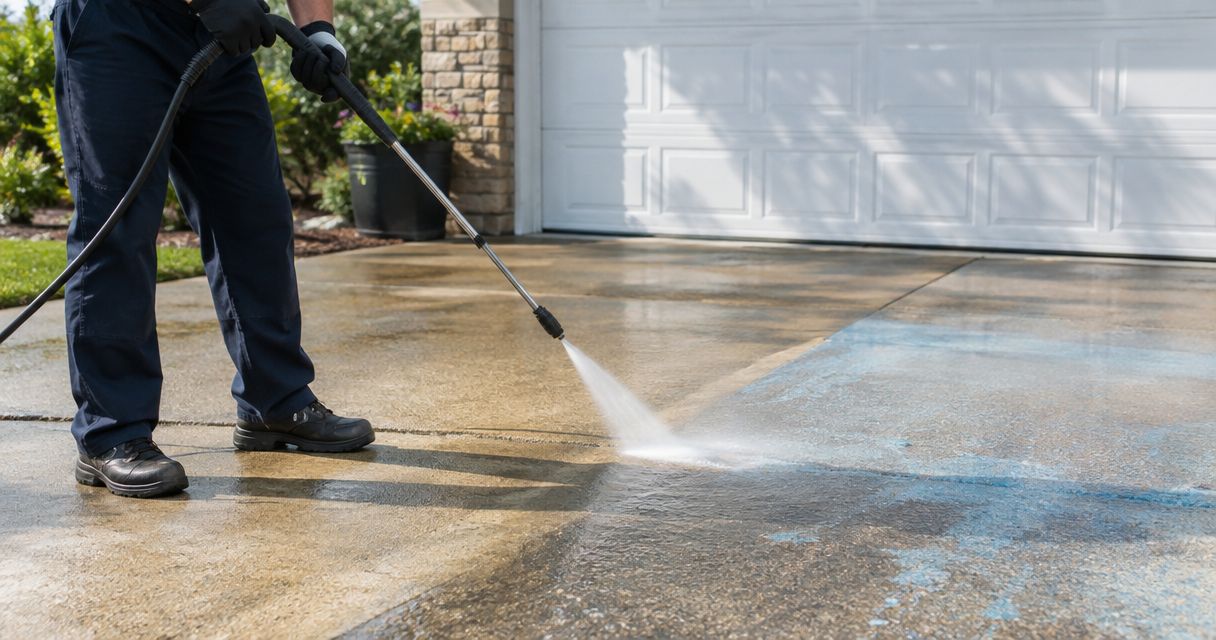
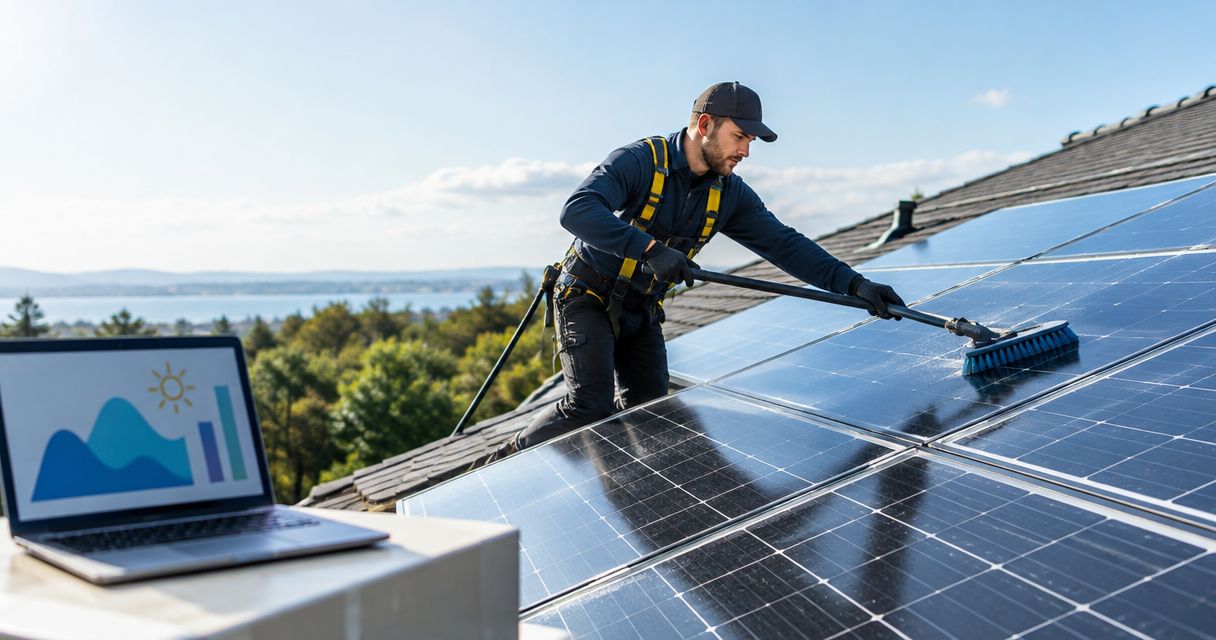
Instead of manually checking solar generation every day, set up a solar panel output drop roof cleaning trigger that emails you when recorded output falls below your chosen reference. Automate the review request—not the roof-washing appointment—because lower generation alone does not establish that cleaning is needed.
- A solar panel output drop roof cleaning trigger should request a review, not automatically book roof washing.
- Google Sheets and Apps Script can compare recorded generation against your chosen reference and email an alert.
- Socalemm provides roof soft washing; this workflow does not establish solar-panel cleaning or monitoring services.
- Check weather, shading, equipment alerts, and data quality before approving exterior cleaning.
Why this matters
Solar generation measures electricity production, not roof cleanliness. Cloud cover, changing daylight, shading, equipment faults, and dirt on the panels can affect output. Staining on the surrounding roof is a separate observation.
Socalemm roof soft washing is best suited to homeowners seeking roof-surface cleaning, not diagnosis of lost solar generation. Use the Socalemm website to discuss the exterior-cleaning scope after you establish what needs attention. Do not treat a roof-washing request as authorization to clean solar equipment.
For your 2026 workflow, separate detection from approval. The spreadsheet identifies a reading that deserves attention; you decide whether the next action belongs with your solar installer or an exterior-cleaning provider.
| Workflow | Best for | Advantage | Limitation |
|---|---|---|---|
| Manual generation review | Homeowners without a reliable data feed | Keeps unusual readings in context | Requires you to remember each check |
| Automated review alert | Homeowners with consistently recorded generation | Flags a chosen output change without repeated spreadsheet checks | Depends on the reference and incoming data |
| Automatic washing appointment | Not recommended from generation data alone | Removes the booking step | Can schedule the wrong response to an electrical or weather-related issue |
The useful automation is the middle option. It saves a check without making a maintenance diagnosis.
Before you start
- Accounts and access: Use a Google account with access to Google Sheets and Apps Script, plus permission to view your solar system's generation records. Follow your monitoring provider's instructions for any export or supported data connection.
- Materials: Gather dated generation totals in kilowatt-hours, a comparable reference for each period, an email address for alerts, and your equipment manufacturer's maintenance instructions. Keep energy totals separate from instantaneous power readings.
- The setup gotcha: This script does not retrieve readings from your inverter. Automatic monitoring requires a supported process that updates the spreadsheet; otherwise, you must enter or import readings yourself. Roof washing and panel cleaning also require separate scope confirmation.
Do not build the alert around a universal percentage. Choose a threshold you can explain, with your installer where appropriate, and record why the reference period is comparable.
Generation log configuration
Create the spreadsheet structure
- Create a Google spreadsheet and name it 2026 Solar Output Review.
- Name the first sheet Readings. In its first row, enter these headers exactly: Date, Energy kWh, Reference kWh, and Status.
- Create another sheet named Settings. Enter Drop threshold in cell A1 and your chosen threshold in B1, formatted as a percentage. Enter Alert email in A2 and your email address in B2.
- Add a dated reading to Readings. Enter the measured energy and the reference energy as numbers, without unit text inside those cells. Leave Status blank.
These labels are fields you create, not settings inside your solar-monitoring application. The script below relies on their exact sheet names and positions.
Expected result: You have a dated energy reading, a comparable reference, a chosen threshold, and an alert destination. No appointment or cleaning request has been created.
Choose a defensible reference
Compare equal reporting periods in the same units. A partial day's energy total does not belong beside a complete day's reference. Neither does an instantaneous power reading beside a daily energy total.
A historical reference needs context: season, weather, shading, and system changes affect the comparison. If your monitoring provider supplies an expected-generation figure, check its definition before using it. Do not label an arbitrary target as expected production.
Keep a short note outside the script explaining your 2026 reference method. When that method changes, update the reference values rather than letting an old assumption continue producing alerts.
Expected result: You can explain what each reference represents. If you cannot, stop before enabling notifications.
Alert logic configuration
Add the review script
- Open Extensions, then Apps Script in your spreadsheet.
- Replace the editor's starter code with the code below.
- Save the project. Use a recognizable project name, such as 2026 Solar Review Alerts.
- Select checkSolarOutput from the function selector and click Run. Review the requested permissions before authorizing the script.
function checkSolarOutput() {
  const lock = LockService.getScriptLock();
  if (!lock.tryLock(10000)) return;

  try {
    const book = SpreadsheetApp.getActiveSpreadsheet();
    const readings = book.getSheetByName('Readings');
    const settings = book.getSheetByName('Settings');
    if (!readings || !settings) {
      throw new Error('Create Readings and Settings sheets.');
    }

    const threshold = settings.getRange('B1').getValue();
    const email = String(settings.getRange('B2').getValue()).trim();
    if (typeof threshold !== 'number' ||
        threshold <= 0 || threshold >= 1 || !email) {
      throw new Error('Check the threshold and alert email.');
    }

    const row = readings.getLastRow();
    if (row < 2) return;
    const values = readings.getRange(row, 1, 1, 4).getValues()[0];
    const [date, energy, reference, status] = values;
    if (status) return;
    if (!date || typeof energy !== 'number' || energy < 0 ||
        typeof reference !== 'number' || reference <= 0) return;

    const drop = (reference - energy) / reference;
    if (drop < threshold) {
      readings.getRange(row, 4).setValue('Checked');
      return;
    }

    const dateLabel = readings.getRange(row, 1).getDisplayValue();
    MailApp.sendEmail({
      to: email,
      subject: 'Solar output review needed: ' + dateLabel,
      body: 'Recorded energy: ' + energy + ' kWh\n' +
        'Reference energy: ' + reference + ' kWh\n' +
        'Review weather, shading, equipment alerts, and data quality.\n' +
        'Do not book roof washing from this alert alone.'
    });
    readings.getRange(row, 4).setValue('Alert sent');
  } finally {
    lock.releaseLock();
  }
}
The script checks the last row only. Append readings in date order, avoid trailing notes below the data, and do not leave an unfinished row beneath the reading you expect it to process.
Expected result: A qualifying reading produces an email and Alert sent in its status cell. A valid reading below your threshold receives Checked. Incomplete readings remain unprocessed.
Understand the boundary
This is a spreadsheet alert, not a solar diagnostic tool or a booking integration. It uses the numbers you supply and does not inspect the panels, roof, weather, or inverter.
The status cell prevents routine repeat alerts for the same row. It also means editing a previously checked reading does not automatically trigger another review; the correction workflow appears below.
Daily check and approval configuration
Enable the scheduled check
- In Apps Script, open Triggers and select Add Trigger.
- Set Choose which function to run to checkSolarOutput.
- Set Select event source to Time-driven and Select type of time based trigger to Day timer.
- Choose a time window after your generation data normally finishes updating, then select Save.
Start with 1 daily check, not repeated checks against an unfinished daily total. A time-driven trigger runs within the selected window rather than guaranteeing an exact appointment-style time.
Test with a clearly labeled test row whose energy value satisfies your chosen threshold. Run the function, confirm receipt, then remove the test row so it does not become part of your production history.
Expected result: The scheduled function checks the newest eligible reading without you opening the spreadsheet. It still depends on the reading arriving first.
Review before requesting work
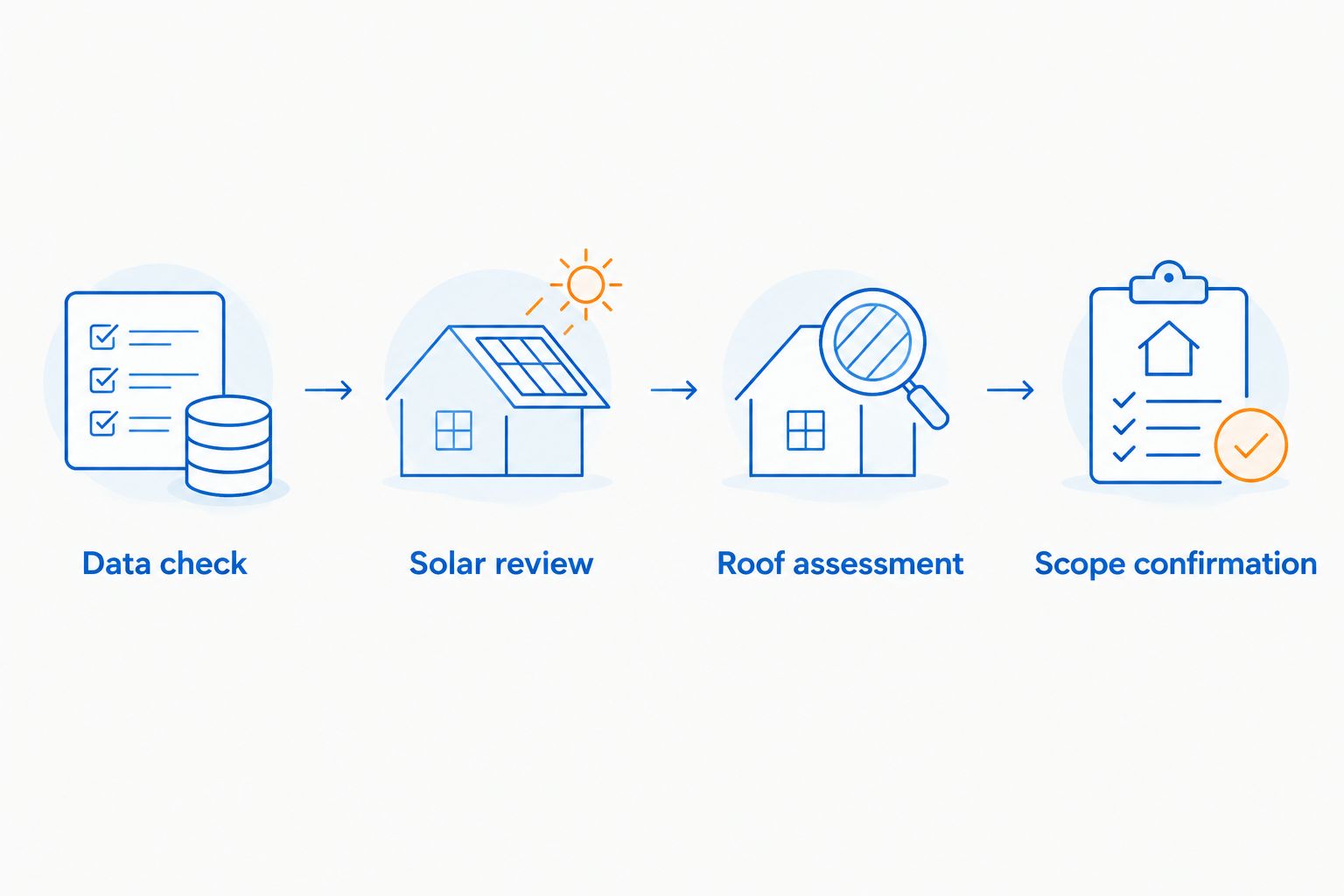
Use this approval sequence whenever an alert arrives:
- Data check: Confirm the reporting period is complete, the units match, and the reference is appropriate.
- Solar review: Check monitoring alerts, recent shading changes, and weather context. Ask your installer to assess unexplained generation changes.
- Roof assessment: Observe roof conditions from the ground. Do not climb onto the roof to validate an email notification.
- Scope confirmation: Describe the roof-cleaning need to the provider and disclose the presence of solar equipment. Confirm panel-related work separately.
Socalemm provides roof soft washing, which gives homeowners a service to discuss when the roof surface needs cleaning. The limitation is scope: the supplied service information does not establish solar-panel cleaning, monitoring integration, or electrical diagnosis.
Expected result: You approve a specific task for a specific reason. The email remains evidence of a recorded change, not proof that washing will restore generation.
Discuss your roof-cleaning scope
Describe the roof condition and mention any solar equipment before requesting exterior cleaning.
Review corrected readings whenever data changes
A second useful workflow covers revised generation records. Your monitoring export can update a period after the first spreadsheet check, or you can correct a reference you entered incorrectly.
- Correct Energy kWh or Reference kWh in the latest row.
- Clear that row's Status cell.
- Run checkSolarOutput again, or wait for the scheduled check.
- Keep a note explaining the correction outside the data columns.
Best for: Homeowners whose latest readings need correction after import. The advantage is reusing the same alert logic; the limitation is that this script does not scan older rows or detect edits automatically.
For an older corrected period, review it manually rather than moving it below newer readings. Reordering historical data would change which period the daily script checks.
Troubleshooting
No email arrives
Check whether the latest row is complete and whether Status already contains text. Confirm the threshold is a numeric percentage, then inspect Executions in Apps Script for errors. An invalid destination or missing authorization can prevent email delivery.
Alerts arrive after unfinished reporting periods
Move the trigger window later than the data update and check the export's reporting cutoff. Changing the alert threshold does not fix an incomplete reading compared against a full-period reference.
The script keeps checking the wrong row
Remove notes and other content beneath the readings table. The script uses the sheet's last populated row; it does not search for the newest date. Keep newest readings at the bottom.
The same reading produces another email
Check whether someone cleared Status or whether execution failed after sending the message but before writing Alert sent. The script reduces routine duplicates, but email sending and spreadsheet updates are separate operations. Keep only the intended scheduled trigger.
Output remains low after exterior cleaning
Return to the solar review. Roof cleaning does not resolve every cause of reduced generation, and this workflow does not establish a cleaning-related cause. Preserve the dated records for your installer rather than scheduling repeated washes from the same symptom.
Customize your workflow
Keep the 2026 setup narrow until its readings and references are reliable. Add a separate notes sheet for weather observations, shading changes, equipment alerts, and the action taken after each notification. Do not place those notes below the reading rows.
For a homeowner, route the alert to the person who can inspect the monitoring record and authorize maintenance. Keep 1 alert destination initially so responsibility is clear; distribute the review afterward if needed.
For a commercial property, use the same detection principle but a separate approval process. Identify the person responsible for solar equipment and the person authorized to approve exterior cleaning. An automated email should not bypass either responsibility.
Review your 2026 reference assumptions whenever the system configuration or surrounding shade changes. Improve the comparison before expanding the automation into other maintenance tasks.
FAQ
Can I automatically schedule roof washing when solar output drops?
Use the output drop to schedule a review, not an automatic washing appointment. Weather, shading, equipment issues, and data errors can produce the same signal, so confirm the cause and cleaning scope first.
What is a solar panel output drop roof cleaning trigger?
It is a rule that compares recorded solar generation with a chosen reference and flags a decline for review. It does not prove the roof or panels need cleaning.
Does this spreadsheet automatically download my solar readings?
No, the supplied script reads values already present in Google Sheets. Use your monitoring provider's supported export or connection process, or enter readings manually.
What percentage drop should trigger a roof-cleaning request?
There is no universal threshold that proves roof cleaning is needed. Choose a review threshold using comparable reporting periods and advice from your solar installer where appropriate.
Is roof soft washing the same as solar-panel cleaning?
No, roof soft washing and solar-panel cleaning involve different surfaces and maintenance instructions. Confirm panel-related work separately rather than assuming it is included in roof washing.
Does Socalemm connect to solar monitoring systems?
The supplied service information does not establish a solar-monitoring integration. Socalemm provides residential and commercial exterior cleaning, including roof soft washing.
Why did changing my spreadsheet reading not create another alert?
The script skips a latest row that already has a status. Clear that status after verifying the correction, then rerun the function; review older corrected periods manually.
One last thing
A correctly working alert can still lead to the wrong maintenance decision. If the reference is unsuitable, the script will faithfully flag a misleading comparison. Save the reason for approving or dismissing each alert alongside your maintenance notes; that record is more useful than a growing list of notifications with no explanation.